Licence and trial
Aivie needs a licence on a live site. On your own machine you can try it without one for 14 days.
Trial on local hosts
Without a licence key, Aivie runs a trial on a local host. The trial lasts 14 days from the first start and allows up to five ideas. The other limits of the trial are listed under package tiers. The trial is fixed: no setting changes its length or its limits.
During the trial, the licence screen and the banner show how many days are left and from which date you can no longer save or generate anything. See Licence statuses for the exact message.
These host names count as local:
localhostand the loopback addresses127.0.0.1and::1- names that end in
.local,.localhost,.testor.internal
A local host name only counts when the request really comes from the same machine and no reverse proxy forwarded it. A staging site on a .test name that you open from another computer therefore gets no trial. Setting the ASP.NET environment to Development does not give a trial or any other right to use Aivie either.
When the five trial ideas are made, Aivie tells you so: your trial ideas are spent, everything you made stays where it is, and with a licence you carry on without the limit. When the 14 days are over, the dialog Your trial period has ended appears once per session. From then on Aivie is read-only, as described below.
During the trial, Aivie sends anonymous usage figures to the licence server, at most once a day. The report holds a random installation number, the trial start date and trial day, the number of trial ideas used, the versions of Aivie, Umbraco and .NET, the database type (SQL Server or SQLite), the number of pages and document types, the system culture and time zone, whether setup and the AI connection are complete, and whether Request a licence was pressed. It does not contain a domain name, name, email address, company name, machine name, user name, API key or any content you created. As with any web request, the licence server does see the IP address the report comes from. Aivie stops reporting 30 days after the trial started. A site with a licence does not report.
No licence on a public domain
On a public domain without a licence key there is no trial. The licence status is No licence, and Aivie is read-only: you can still look at your pages and settings, but creating and changing things is refused until a licence is entered. The same applies once a trial is over. Chat, generation and the background jobs stop as well. Everything you already made stays where it is.
Entering a key
Only members of the Aivie-admin group see the licence screen.
- In the Aivie section, under Account, choose Licence.
- Paste the key into the box Enter licence key. As the screen says, the key starts with
AIVIE-. - Press Save. The message The licence has been saved. confirms it.
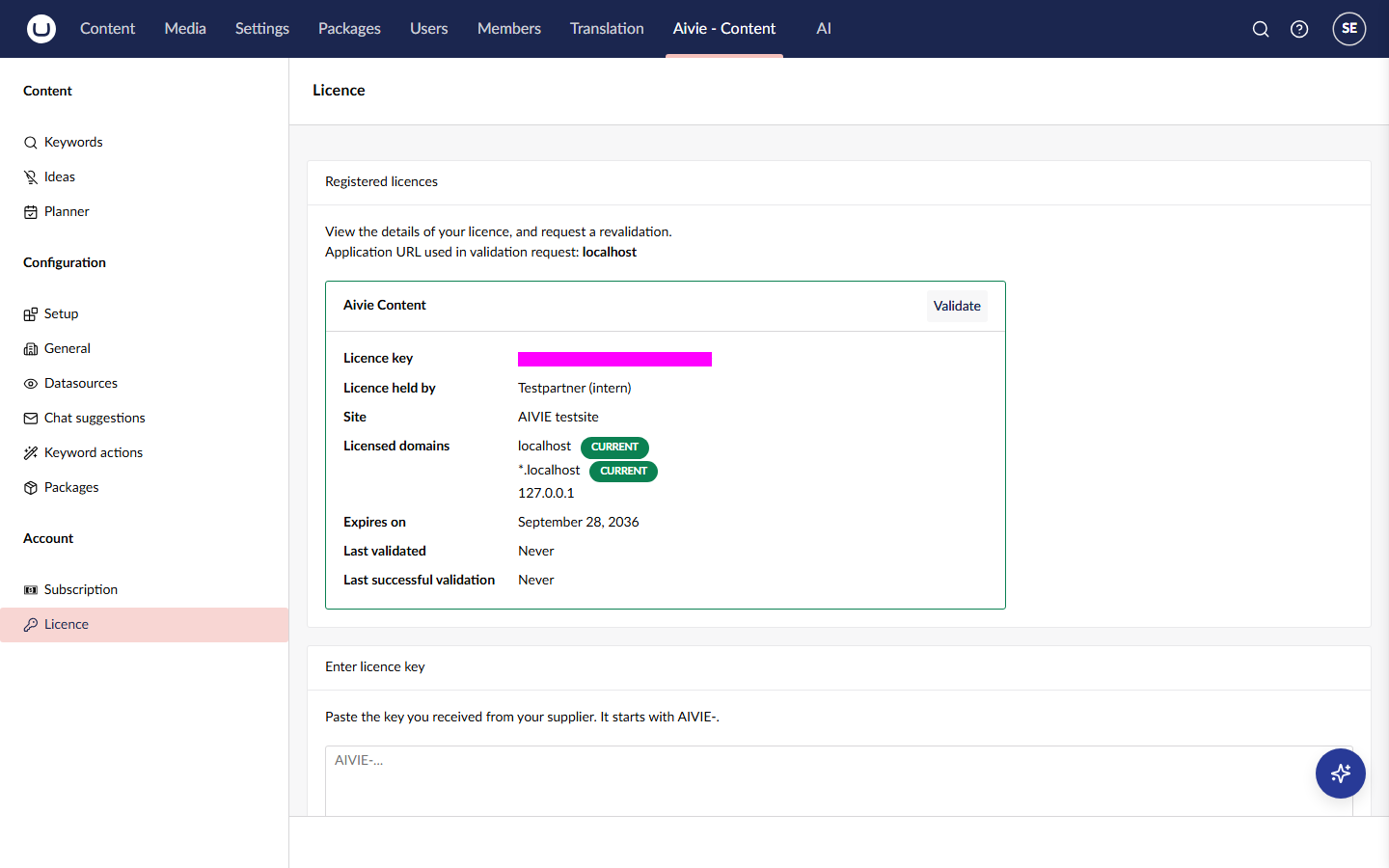
The new status applies immediately. The box Registered licences shows the details of your licence: the licence key (shortened), who holds the licence, the site, the licensed domains with a CURRENT tag on the one you are on, the date it expires, and when it was last validated. Press Validate to ask the licence server to revalidate it. The message The licence has been revalidated. confirms it.
The key is checked against the host name you use. A valid key that does not cover your domain gives the status Different domain.
You can also hand the key over with a deployment, through the licence key setting in the configuration keys. When a key exists both in the database and in the configuration, the most recently issued one is used.
The licence screen shows the application URL used in the validation request. This is your Aivie:BaseUrl setting, which the setup wizard writes from the field Public URL. If it points at the machine itself, such as localhost, on a production site, Aivie treats the installation as local and does not renew the licence, so the licence runs out after 35 days. Set it to the real public address in the setup wizard.
Requesting a licence
If you have no key yet, request one from the licence screen. Under Request a licence, press Request a licence. The button opens the request form on www.aivie.nl in a new tab. The address ends with your installation number, so that your request can be linked to your trial. If you already have a key, use I already have a key in the trial dialog instead.
The installation number is a random identifier for this installation. It sits behind a # in the address, so your browser does not send it to the server when it loads the page.
Statuses in short
The licence screen and the banner show one of these statuses, with a message that explains it. Licence statuses explains each status and its messages.
| Status | In short |
|---|---|
| Trial | No key, local host, trial still running. |
| No licence | No key and no trial, or the trial is over. Aivie is read-only. |
| Valid | The licence is in order. |
| Expiring soon | Valid, but it expires soon. |
| Not renewed | The licence server reports that it was not renewed. Aivie keeps working until the expiry date. |
| Expired | The licence ran out. Aivie is read-only. |
| Different domain | The key is valid, but not for this host name. Aivie is read-only. |
| Revoked | ipsis withdrew the licence. Aivie is read-only. |
| Invalid | The text is not a valid Aivie licence key: it is incomplete or was copied wrongly, is for another product, or its signature is wrong. Aivie is read-only. |
| Cannot be read | Aivie cannot read its stored licence at the moment. It does not create or change anything, but looking still works. Often trying again after a while is enough. |