Setup wizard
The setup wizard connects Aivie to OpenAI and to your site in one pass. It is a single screen, not a series of steps, and you can run it again later to fill in what you skipped.
Opening Setup
- Log in to the backoffice as a member of the Aivie-admin group.
- Open the Aivie section, Aivie - Content.
- In the sidebar, under Configuration, choose Setup.
Only members of Aivie-admin can open Setup. If you do not see it, check your user group under Roles and access. The screen has a second tab, Settings, with the technical settings. Those are described in the configuration keys reference.
On a public domain, enter your licence key before you run the wizard. Without a licence Aivie is read-only there, and the wizard's Set up Aivie button is refused like every other change. See Licence and trial.
The checklist
The box What still needs doing ticks off what is already in place:
- the OpenAI key
- the connection to OpenAI
- the default chat profile
- the contexts for settings and keywords
- the agents
- the subscription, with a site key (on a partner licence this line reads Partner licence: no subscription needed.)
- the public URL of the site
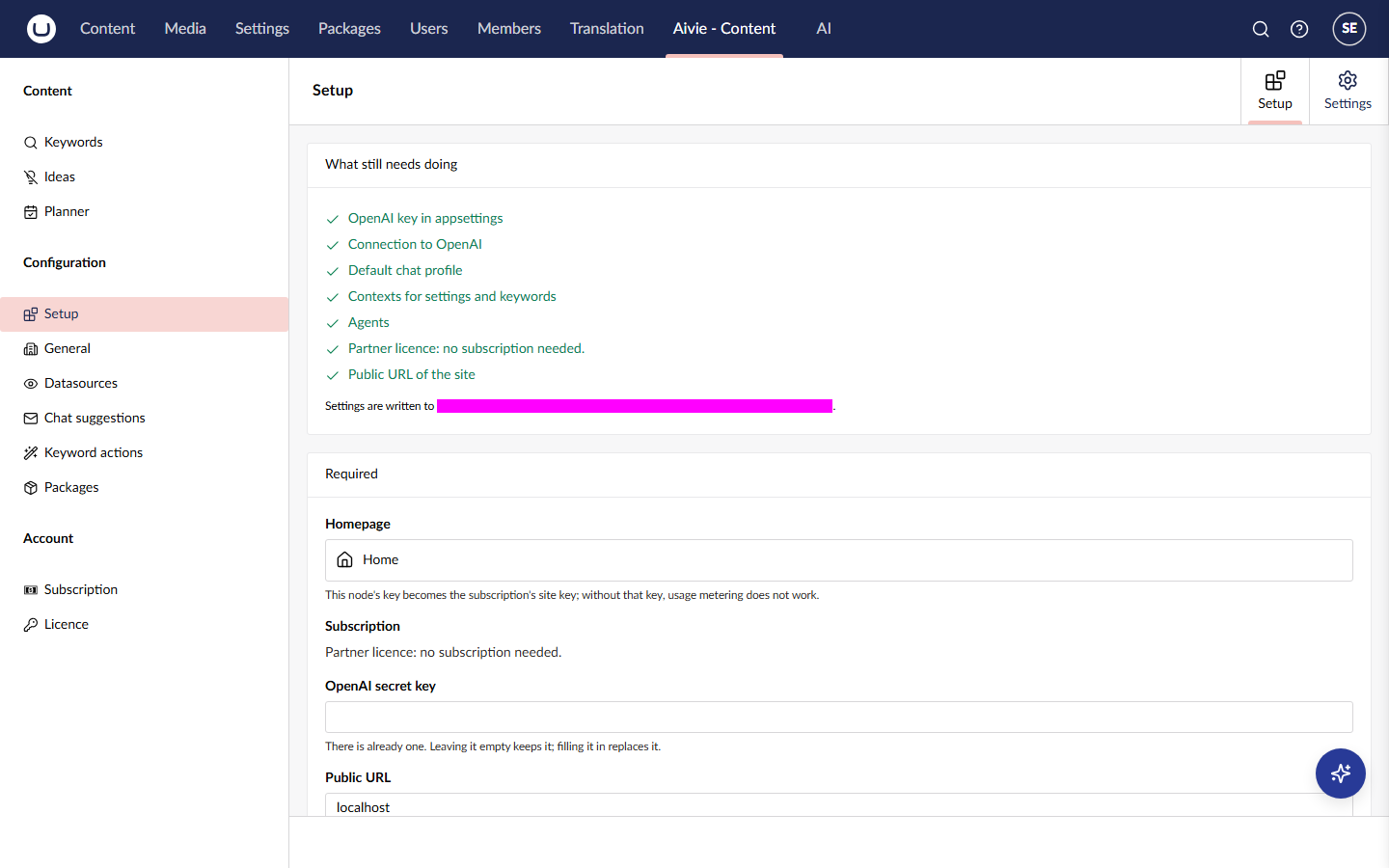
Under the list the screen shows the file the settings are written to. Aivie counts the setup as finished once the key, the connection, the default chat profile, the agents and the subscription are in place. The public URL is not part of that test, but fill it in as well. Aivie reports it to the licence server, and on a live site it must not be localhost.
Required fields
The box Required holds the four things Aivie needs to work.
| Field | What to enter |
|---|---|
| Homepage | The first root page of your content tree. Aivie uses its key as the site key of your subscription, so it refuses any other page. This is the only field the screen insists on: without it you get Pick the homepage first. |
| Subscription | The package: Aivie Content - Core, Plus, Max or Ultra. A short description of the selected package appears below the list. On a partner licence this field is replaced by Partner licence: no subscription needed. The limits per package are on the package tiers page. |
| OpenAI secret key | Your OpenAI API key. |
| Public URL | The public address of the site, for example https://www.example.com. Aivie reports it to the licence server. On a live site it must not be localhost or another address of the machine itself. See Licence and trial. |
When a key is already stored, the key field stays empty. As the screen explains, leaving it empty keeps the existing key and filling it in replaces it. The same goes for every other secret on this screen.
Access
The box Who can access Aivie lists all user groups. Tick the groups that should get access to the Aivie section. Groups that already have access show (already has access) and are ticked when the screen opens.
The wizard only ever adds access. It never takes it away, so unticking a group does not remove its access. To remove access from a group, change that group under Users → User Groups.
Setup, Settings and the Licence screen stay limited to Aivie-admin, whatever you tick here.
Optional fields
The box May be skipped has two fields for DataForSeo, the service that supplies search volumes for your keywords: DataForSeo login and DataForSeo password. If you leave them empty, your keywords have no search volumes and everything else keeps working. You can run the wizard again when you have an account.
Google Search Console and the other integrations are not part of the wizard. See Keywords and Search Console.
The box Stays manual does not concern the features described in this documentation. You can skip it.
Apply, restart, apply again
- Press Set up Aivie. The button shows Working... while it runs.
- Read the box Result, which lists per step what was done, what was skipped because it already existed, and what failed.
- Press Restart site in the result box, and confirm. Some settings, such as the OpenAI key, are only read at startup. The site is unavailable for a few seconds. Under IIS it comes back on its own; if it runs as a standalone process, someone has to start it again.
- When the site is back, press Set up Aivie a second time. Image generation only takes effect after a restart, so the image profile may only be created in this second run.
- Test the AI connection. After a successful run Aivie already makes a test call. You can repeat it under Account → Subscription, in the block AI connection, with Test connection. If the test fails, see AI connection problems.
Every step first checks whether its result already exists, so running the wizard again never overwrites anything. Apply creates, where missing:
- the OpenAI connection, which refers to the key in your settings instead of storing the key itself
- the Aivie chat profile, set as the default chat profile when none is set yet
- the Aivie image profile, set as the default image profile when none is set yet, after the restart
- the contexts Aivie uses: basis, chat, datasources, ideas, layer 2, customer-specific and keywords
- the default layers in those contexts: Layer 1 and the Layer 2 documents for each kind of page (see Default layers)
- the agents: the chat assistant, the ideas agent and the keywords agent
- a folder in the media library for the images Aivie generates
- a description field on the Image media type, so that Aivie can find generated images by their description (see Images and media)
- your subscription, linked to the homepage you picked
- the section access for the groups you ticked
Aivie creates these items with Dutch names in Umbraco.AI, for example Aivie Ideeen and Aivie Klantspecifieke context in AI → Contexts. The aliases are what Aivie relies on, so you may rename them.
After the wizard, choose the content types that idea groups can use on the Settings tab. The wizard does not do this, and without it Which content type? stays empty in the idea group dialog. See Idea generator.
Newer default layers
When a new version of Aivie ships a newer text for a default layer that you changed on your site, the box Newer default layers appears on this screen. For each layer you can press View to compare your text with the new default, Use the default to replace your text, or Keep my version. See Default layers.
What the wizard writes to appsettings
The wizard writes only the values you filled in, plus a few it needs itself, to appsettings.{Environment}.json in the content root. The keys are:
Umbraco:AI:Secrets:OpenAiKeyAivie:BaseUrlAivie:DataForSeo:LoginandAivie:DataForSeo:PasswordAivie:Competitors:CronSecret, a generated secret that the features described in this documentation do not use; leave it as it isUmbraco:AI:Experimental:ImageGeneration, which it switches on for image generationUmbraco:AI:AuditLog:PersistPromptsandUmbraco:AI:AuditLog:PersistResponses, which it switches off, so your prompts and the AI's answers are not stored in the Umbraco.AI audit log
An empty field never erases a value that is already there. Each key is explained in the configuration keys reference.
The OpenAI key and the DataForSeo password are written to this file as plain text. Keep the file out of source control. The configuration keys reference lists every key that holds a secret.
Import an intake form
The box Read intake form fills in your company details from a completed intake form (a .docx file). Aivie reads what it can and shows what it would apply, next to what is there now. Nothing is saved yet. Tick the rows you want and press Apply. The message The selected details have been applied. confirms it.
- Text such as company name, industry, mission, vision and tone of voice replaces what is there for the rows you tick.
- Lists such as services, USPs, goals, audiences and datasources are added to. What you already have is kept. A service, USP or goal from the form becomes the name of a new entry.
- If Aivie cannot recognise anything it says so: Nothing was recognised in this file. Is it a completed intake form?
The values end up in the general settings and on the Datasources screen. See Company and brand.
Import a Layer 3 document
The box Read Layer 3 takes your website's Layer 3 document (.docx, .md or .txt): tone of voice, house rules and agreements. Aivie first shows what it read: the name, the number of characters and lines, and the first lines. Only when you press Apply is the text added, as it is, as a resource in the customer-specific context. The message Layer 3 has been added to the customer-specific context. confirms it.
Aivie refuses the import in three cases: the customer-specific context does not exist yet (run the wizard first), a Layer 3 is already there, or the document is longer than 200,000 characters. To change an existing Layer 3, edit it under AI → Contexts.
Restore the default layout
The box Restore default layout resets the Aivie contexts, and which contexts and surfaces each agent has, to the defaults of the installed version. Use it when someone changed those by hand and you want the standard back. It is not part of an update, see Updating Aivie. Press Restore defaults and confirm Restore the default layout?.
The contents of Datasources and Customer-specific, your own resources of other types, the agents' instructions and the files in the context folder are kept.
Manual changes to the Aivie contexts, the agent links or the surfaces in AI → Contexts and AI → Agents are reset. This cannot be undone.