Company and brand
Aivie writes better when it knows who you are. The general settings hold your company details, your brand style and the lists of selling points, goals, services and audiences that Aivie draws on when it generates ideas, pages, images and chat answers.
Open the general settings
- Open the Aivie section, Aivie - Content.
- In the sidebar, under Configuration, choose General.
- Pick a tab: Company, Brand & style, USPs, Goals, Services or Audiences.
- Press Save. Each tab is a separate screen, so save before you move to another tab.
Everyone with access to the Aivie section can open and change these settings. The setup wizard can fill most of them from an intake form. See Setup wizard.
Until you have saved the general settings once, Aivie passes placeholder example details to its agents instead of yours. Fill in the Company tab and press Save before you generate anything.
How Aivie uses these details
The chat assistant, the idea generator and the keyword generator each get a block of your details with every request: company name, industry, mission, vision, tone of voice, services, audiences and image style. You do not have to point the agents at them.
The block is the Aivie settings resource in the Aivie contexts, which you can see under AI → Contexts. That resource has a switch for each group of details, such as Include services and Include USPs. Include USPs is off in a new installation, so USPs are stored but reach the agents only after you turn it on there.
Goals work differently. They are not part of that block. They are options you choose from when you set up an idea group, and only the name of the chosen goal goes to the generator.
Company
The Company tab has five fields:
- Company Name:
- Industry:
- Mission:
- Vision:
- Tone of Voice:
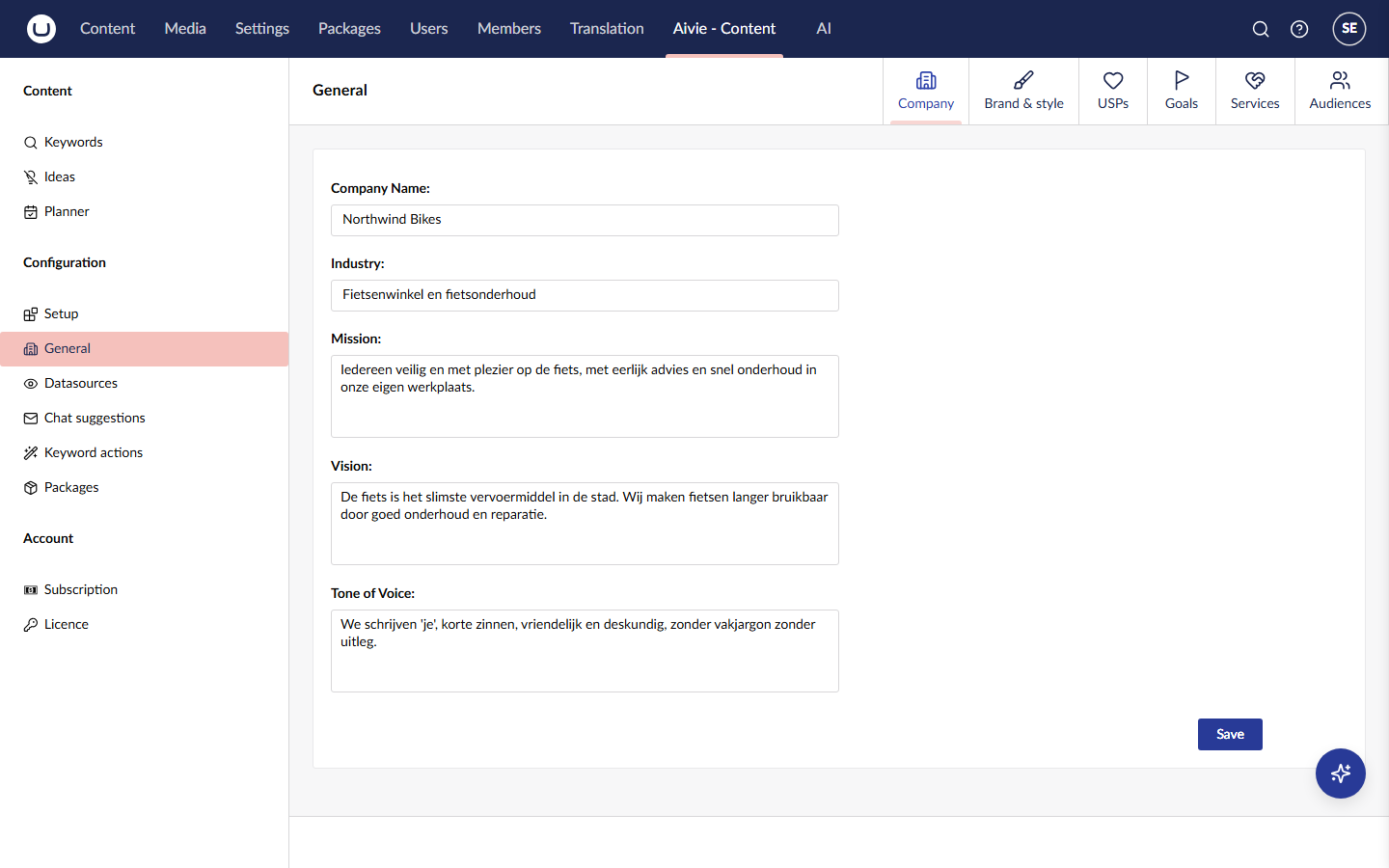
Mission, vision and tone of voice are text boxes for a few sentences each. Describe your tone of voice in plain words, for example formal or relaxed, and whether you address the reader as "you". The agents get this text with every request.
Brand and style
The Brand & style tab holds two settings for images.
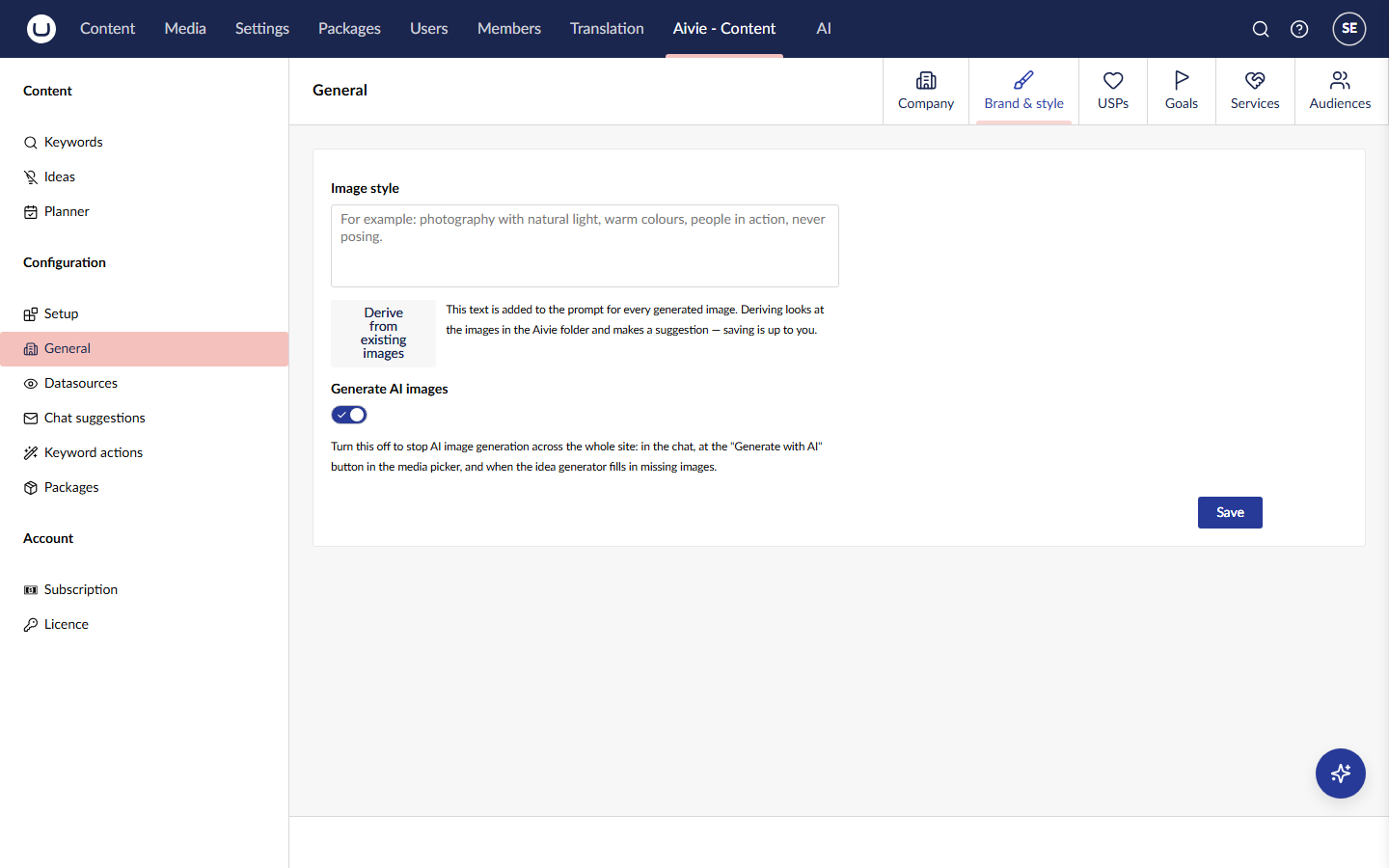
Image style is a short description of how images on your site look, for example "photography with natural light, warm colours, people in action". Aivie adds this text to the prompt of every image it generates, so that the images in your library look alike. Without an image style, Aivie still generates images, but they can differ in look from one image to the next.
You do not have to write the style from scratch. Press Derive from existing images. Aivie shows a selection of the images in its media folder to the AI model and asks for a description of what they have in common. Aivie tells you how many images it used and asks you to read the suggestion over. The suggestion is placed in the field, but not saved. Edit it and press Save.
- The media folder must hold some images. If it is empty, Aivie says so and you write the style yourself.
- The suggestion is written by the default chat profile, so that profile needs a model that can read images.
- Aivie asks for the description in Dutch. You can rewrite it in another language before you save.
Generate AI images is the site-wide switch for AI image generation. Turn it off to stop image generation everywhere: in the chat, at the Generate with AI button in the media picker and when the idea generator fills in missing images. See Images and media for what else image generation needs, including the description field that Aivie adds to your images.
USPs, goals, services and audiences
These four tabs are lists in the same layout. Each entry has a Name and a Description. Press + Add another to add an entry and Delete to remove one.
- USPs are your selling points. Put the point itself in the name and explain it in the description. They reach the agents only when Include USPs is on in the Aivie settings resource, as described above. A USP without a name goes to the agents with its description as the name.
- Goals are what a page should achieve, for example "Book a demo".
- Services are what you offer. Names and descriptions go to the agents.
- Audiences are the groups you write for. Names and descriptions go to the agents. The agents are told to use only these audience names when they refer to an audience.
When you create an idea group you can pick one goal, one service and one audience from these lists. See Your first ideas. Keep the names short and distinct, because the name is what the generator sees for a chosen goal, service or audience.
Related pages
- Setup wizard: fill in the company details from an intake form.
- Images and media: the folder, profile and size of generated images.
- Idea generator: how the ideas are generated.