Idea generator
The idea generator turns your idea groups into pages. Each page is published on its publication date, or at once when that date is today. This page explains the settings that control how it works, the example pages that show it how your pages are built, and the default layers that tell it how to write. You can leave most settings as they are, but you must choose which page types an idea group can create. See Your first ideas for the walkthrough.
Each idea the generator makes counts against the ideas allowance of your package. See Package tiers.
Open the settings
The settings are on the Settings tab of Setup, which only members of Aivie-admin can open.
- Open the Aivie section, Aivie - Content.
- In the sidebar, under Configuration, choose Setup, and then the tab Settings.
- The idea generator settings are in the groups Idea generator, Page structure and Images and media.
- Change a value and press Save.
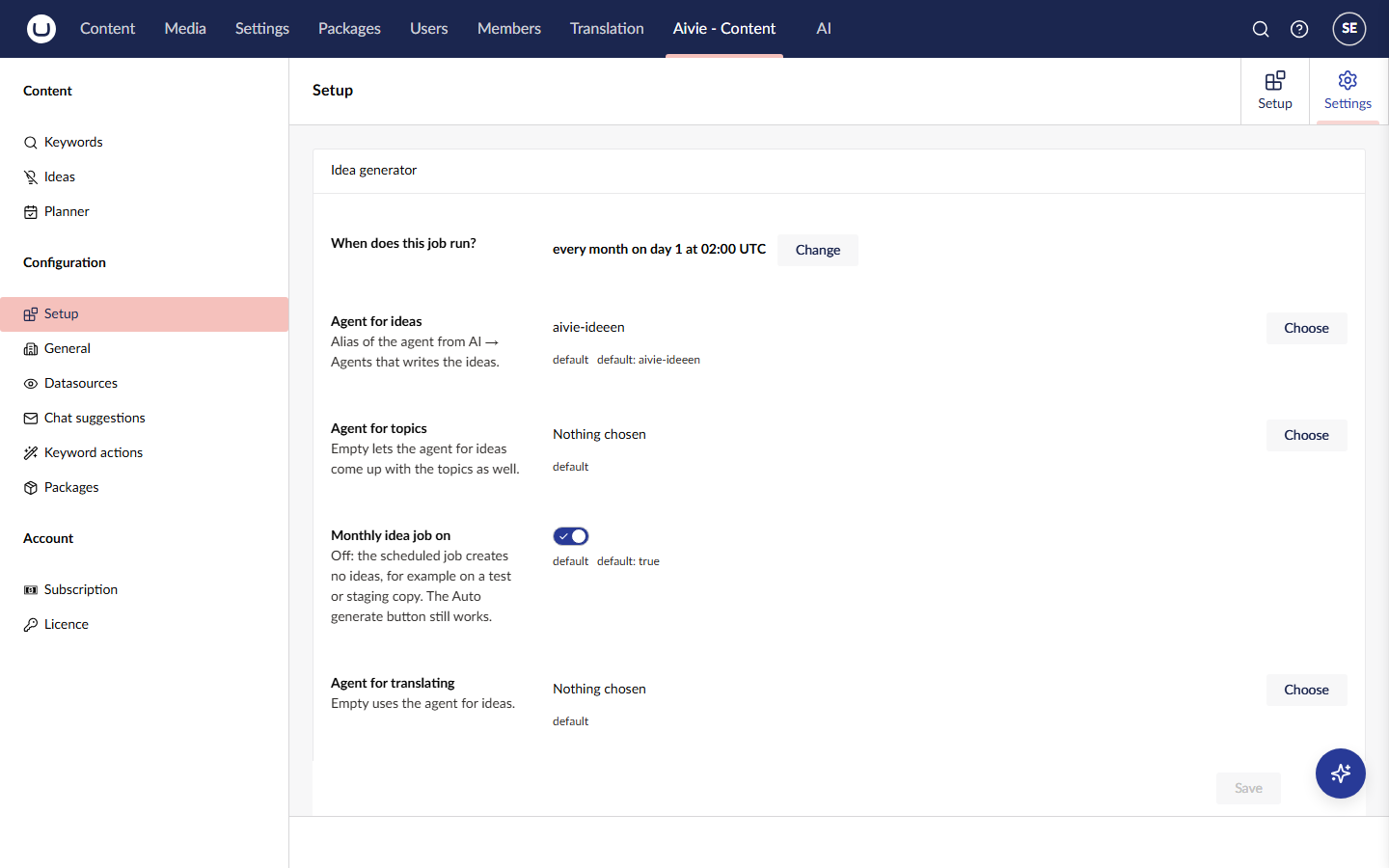
Every value shows where it comes from: default, from appsettings or set here. A value you change shows not saved yet until you save. A value set here wins over appsettings. To undo a change, press Reset to default next to the value. The change then falls back to the appsettings value, or to the default when there is none. Keys and defaults are in the configuration keys.
Choose the page types for idea groups
The setting Doctypes that can serve as an idea group decides which document types an idea group can create. Until you choose at least one, the Which content type? list in the New idea group dialog is empty and a group cannot generate pages.
Find the setting in the group Idea generator, press Choose, tick the types and confirm. Only types that are not element types are offered.
Agents
The generator works through agents that you can see under AI → Agents. Each agent setting has a Choose button that lists the agents and stores the alias of the one you pick. Nothing chosen means the setting is empty.
| Setting | What it does |
|---|---|
| Agent for ideas | The agent that writes the ideas. |
| Agent for topics | The agent that proposes the topics before the ideas are written. When empty, the agent for ideas does this as well. |
| Agent for translating | The agent that translates ideas for the other languages of your site. When empty, the agent for ideas does this as well. |
A separate topics or translation agent lets you use a cheaper or more specific profile for that part of the work.
How much a run makes
A run is one pass of the generator over your idea groups that are active this month. It shares the monthly ideas allowance of your package among them.
Only groups that can actually run take part. A group without a content type, with a content type that no longer exists, or without a parent page that Aivie can find, is left out. It gets 0 ideas, and its share goes to the other groups.
When a group produces fewer ideas than its share, for example because an idea was rejected, the rest goes to the other groups in a next round. A group that produced nothing in a round, or that failed, no longer takes part in that run. The run stops when the allowance is used up, or when a round produces nothing at all. If the run still made fewer ideas than planned, Aivie writes a warning to the log with the number per group. See Fewer ideas than expected.
| Setting | What it does |
|---|---|
| Groups per run | Limits how many idea groups one run handles. Groups that cannot take part are left out first. A value of 0 lets all groups take part. |
| Maximum number of ideas per run | An emergency brake across all groups, not the normal number. Leave it empty or at 0 for no cap. A low value caps the whole month, however large your package is, so do not leave a test value in place. |
| Existing ideas in the briefing | How many existing ideas the generator is shown, so that it does not repeat itself. |
| Repair rounds | How many times a rejected idea goes back to the agent with the complaints. 0 turns repairing off. |
Titles and length
The generator first proposes titles and rejects the ones it cannot use. Then it writes an idea for each approved title.
| Setting | What it does |
|---|---|
| Number of suggested topics | How many topics the generator proposes per call. The proposals are more than needed, because some fall away, for example a title that already exists. With 0, Aivie picks the number itself, based on what that round needs. |
| Maximum title length | The most characters a title may have. Longer proposals fall away in the title phase. 0 turns the check off. |
| Minimum number of words | The least number of words an idea must have, over all blocks together. An idea that is too short goes back to the agent in a repair round. A length that is still too short after the last round does not stop the idea. |
How long a page should be is not a setting. The ideas agent takes the length from the Layer 2 instructions for that kind of page, and writes about 600 words when they name no length. See Default layers.
Page building
These settings in the group Page structure decide where a generated page ends up and what it looks like.
| Setting | What it does |
|---|---|
| Default parent page | Where ideas are placed when the idea group does not choose a page itself. You pick the page in a content picker. When this is empty, a group without its own parent page does not run, and Aivie reports why. |
| Property that keeps a page out of the menu | The alias of the property on the page type that hides a page from the navigation. Aivie sets it on every new idea, because nobody has looked at an idea yet when it goes live. Leave it empty to turn this off. Nothing happens when a page type does not have the property. |
| Property for the sitemap | The alias of the property that puts the page in the sitemap, so that a page that is hidden from the menu can still be found. Leave it empty to turn this off. |
| Number of link targets | How many existing pages are offered as targets for links and buttons. The agent cannot search your site, so without this list it could only invent a destination. Links that do not lead to a page on your site are removed from the idea. 0 turns it off. |
| Include an example page | Sends the structure of an example page along with each idea, so that the generator uses the block types, the order and the settings that your site uses. See Example pages. Blocks from the example page limits how many blocks of a page are read. |
| CSS class for buttons | The class that turns a call to action in rich text into a button. Leave it empty to turn this off. |
| Doctypes that only redirect and Properties holding the destination | For menu-item types that are not pages themselves, such as a menu entry that points somewhere else. Aivie then takes the address from the first of these properties that has a value, so that these items still count as link targets. |
Example pages
An example page shows the generator how pages of a type are built on your site: which blocks come first, which block types follow, and which widths and settings they use. The generator gets only that structure. It does not get the text of the example, and not the number of blocks, so an example does not decide how long an idea becomes.
You choose example pages per idea group, in the field Example pages of the idea group dialog. You can choose several. The picker only offers pages of the content type of the group. When you save, Aivie checks that each page is of that type and in the same site as the parent page of the group, and a run only uses the chosen pages that are published and have at least one block. For each idea, Aivie picks the example that fits the topic best, and spreads the ideas of a run and a month over the examples, so that one example does not attract all of them.
When you choose no example, or when none of the chosen pages can be used (for example because none is published any more), Aivie picks up to five published pages of the same type in the same site itself: the ones with the most varied structure. Pages that Aivie generated are left out of this automatic choice.
The preview of an idea group shows which example it used, as Example: followed by the page name, or Written without an example page. To turn examples off for all groups, switch off Include an example page in the group Page structure.
Default layers
The agents write with instructions in layers. Aivie ships two of them and installs them with the setup wizard:
- Layer 1 holds the basics that apply to every page, in the context Aivie Basis Context.
- Layer 2 holds the instructions per kind of page, each with a target length, in the context Aivie Laag 2. Aivie ships five: Default (600 to 1,000 words), Blogs & News (700 to 1,200 words for a blog, 300 to 600 for a news item), Cases (500 to 900), Recruitment (500 to 800 for a vacancy, 600 to 1,000 for a working-here page) and SEO landing page (800 to 1,200).
The Layer 2 documents also hold rules so that a page can be made without you stepping in: the page title is the H1 that Umbraco sets, so the text itself has no H1; the SEO title and meta description are only filled when the page type has fields for them; Blogs & News puts no publication date in the text; and Cases and Recruitment leave out a part they have no information for, instead of writing a note about it in the text. Blogs & News, Cases and Recruitment also tell the agent to write shorter when there is little information. See Pages are shorter than expected.
Layer 3, your own house rules, is described under Import a Layer 3 document.
Link Layer 2 to your page types
Each Layer 2 document is a resource in AI → Contexts → Aivie Laag 2, with the fields Instruction, Page types and Use as fallback. For every idea, Aivie passes only the Layer 2 documents whose Page types include the page type of the idea. When none does, it passes the documents that have Use as fallback on.
After installation no document is linked to a page type and all of them are a fallback, so every idea gets all five. Link each document to the page types it is written for, and leave Use as fallback on only for the document that should apply to the other page types, usually Default.
Updates to the default layers
A new version of Aivie can ship newer default layers. On start, Aivie compares each default layer on your site with the text it installed:
- A layer you did not change gets the new text. Only the text changes: the page types, the fallback switch, the name and the other settings stay as they are.
- A layer you changed keeps your text. The setup screen then shows the box Newer default layers, where you choose View, Use the default or Keep my version. See Setup wizard.
- A layer you deleted is not brought back.
On a site with more than one server, only the scheduling server does this.
Images and media
Two settings in the group Images and media steer the images the generator can use. The other image settings are on Images and media.
| Setting | What it does |
|---|---|
| Number of images offered | How many images from the Aivie media folder are offered to the agent to choose from. |
| Words that stop a media field from counting as an image | A media field with one of these words in its name or alias is treated as video, not as an image. Add a word when a video field on your site is named differently. |
When an image field stays empty and image generation is on, the generator can ask for a new image. Switching off Generate AI images under Brand & style stops that. See Company and brand.
Schedule
The generator also runs on its own, by default on the first of every month. See Background jobs. The group Idea generator shows the schedule as one sentence, with a Change button next to it.
- Press Change. The dialog When does this job run? opens.
- Choose the Frequency: Hourly, Daily, Weekly or Monthly.
- Set the Time (UTC). For hourly, only the minutes count.
- For weekly, choose the Day of the week. For monthly, choose the Day of the month. A day higher than 28 becomes 28, because otherwise February would be skipped.
- Press Apply, and then Save.
All times are UTC. A schedule you change takes effect within a minute. The jobs and their schedules are listed under Scheduled jobs. To stop the scheduled run on a staging or test copy, switch off Monthly idea job on in the same group.
The Publication time (UTC) is a separate setting. It is the time of day at which a scheduled idea goes live. It is separate from the schedule of the job, because the job may run at night, when a page that goes live is of little use.