Chat and chat history
The chat assistant is the Aivie panel you open in the backoffice. This page covers what you can set up around it: the suggested questions, the actions for keywords and the history of conversations. For using the chat, see Chat assistant.
Chat suggestions
Chat suggestions are the buttons that appear under an empty conversation, below the text Or start with one of these:. One click sends the question to the assistant.
- Open the Aivie section, Aivie - Content.
- In the sidebar, under Configuration, choose Chat suggestions.
- Edit the table. Each row has a Label, a Prompt and an Active switch.
- Use + Add suggestion under the table to add a row, and the delete button on a row to remove it.
- Press Save suggestions. The message The chat suggestions have been updated. confirms it.
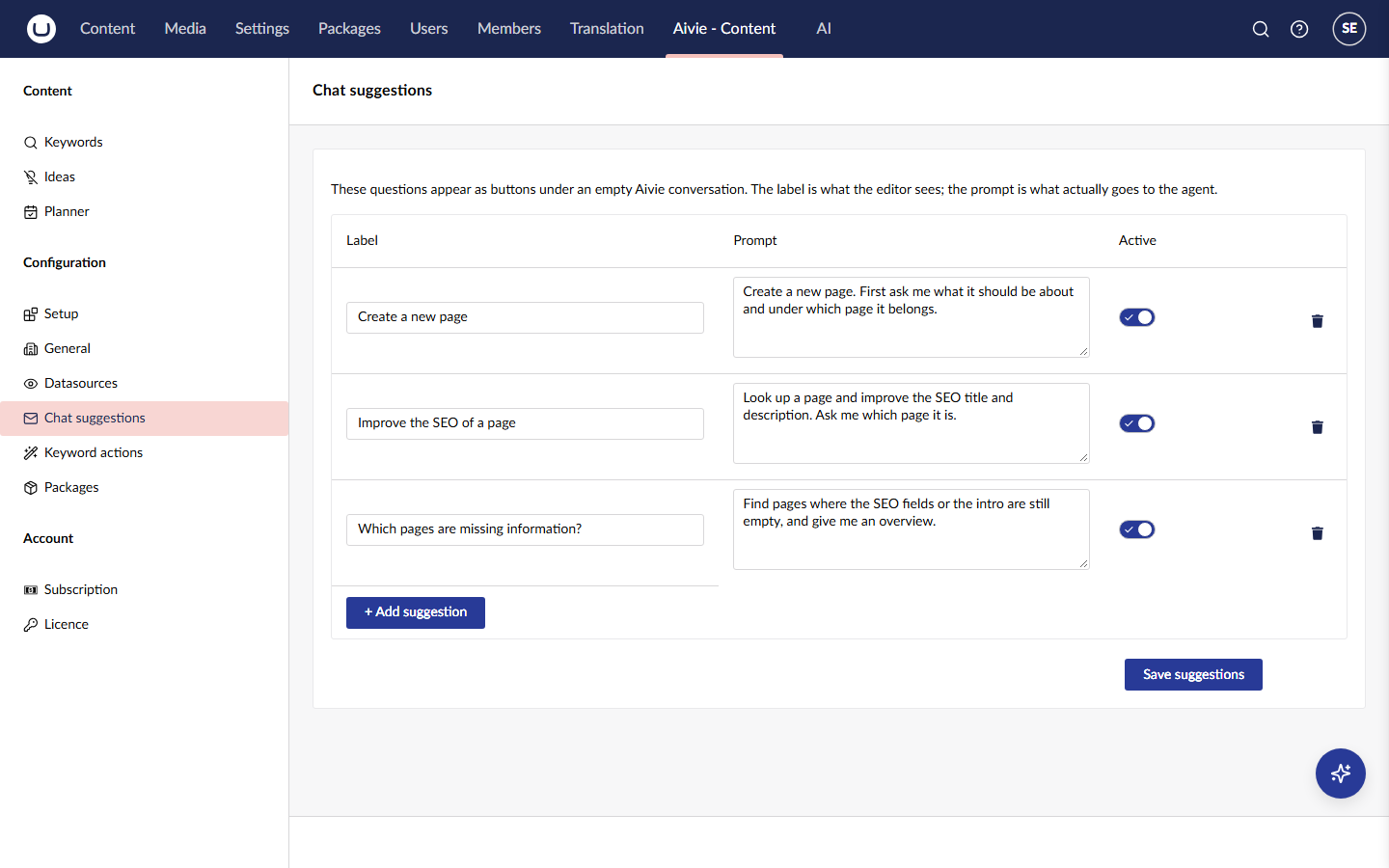
The label is short, because it is the text on the button. The prompt is what the assistant actually receives, so it can spell out what to ask back. Switch Active off to keep a suggestion without showing it, for example for a seasonal one. Rows without a label or without a prompt are dropped when you save. The order of the rows is the order of the buttons.
A new installation starts with three example suggestions, such as Create a new page. As long as you do not change them, Aivie shows them in the language of each user's backoffice. Once you edit a suggestion, it shows your text to everyone. Everyone with access to the Aivie section can change the suggestions.
Keyword actions
A keyword action is a ready-made request for the chat that you start from the keyword list. When you send a keyword to the chat, the Keyword assistant dialog lets you pick one of the active actions under Action, and you press Send. The assistant then works on that keyword and the related keywords you ticked.
- In the sidebar, under Configuration, choose Keyword actions.
- Edit the table in the same way as the chat suggestions: Label, Prompt and Active. Use + Add action to add a row.
- Press Save actions. The message The keyword actions have been updated. confirms it.
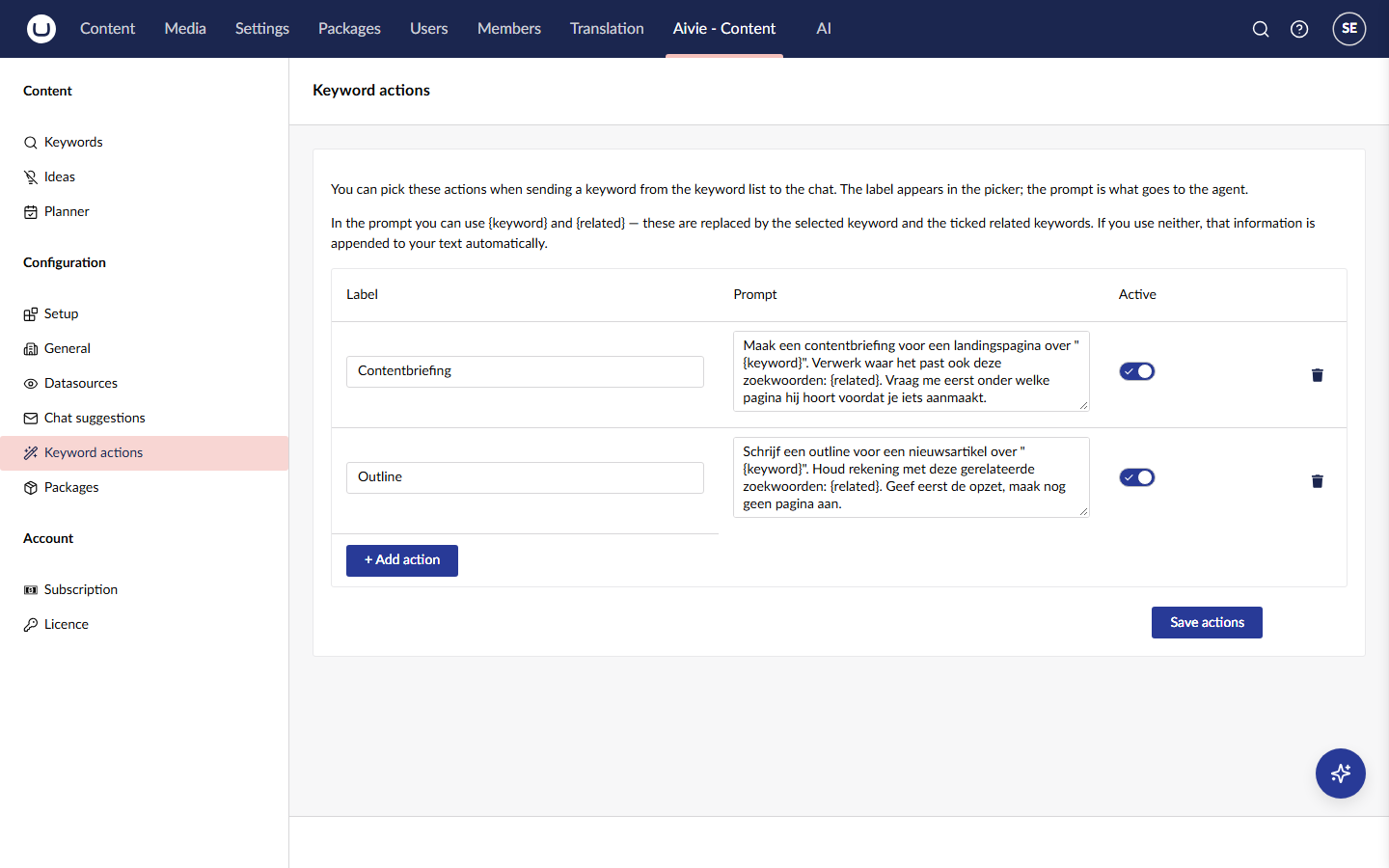
The label appears in the picker. The prompt is what goes to the assistant. In the prompt you can use {keyword} and {related}. They are replaced by the selected keyword and the ticked related keywords. If you use neither, that information is added to the end of your text. A new installation starts with a few example actions. Everyone with access to the Aivie section can change them.
Chat history
Chat history keeps your conversations, so that you can pick one up again later. It is off in a new installation. Turn it on with Keep chat history in the group Chat on the Settings tab of Setup, which only members of Aivie-admin can open. Until then the chat starts empty each time and the history button shows no conversations.
With history on:
- Aivie stores each user's conversations in its own database. Users only see their own conversations.
- The history button in the chat header, Previous conversations, lists them with their last change.
- Choosing one replaces the conversation on screen. If the assistant is still busy with a task, you are asked to confirm first. Aivie then sends the opening message Let's pick up where we left off. Where were we? on your behalf and restores the stored messages, so the assistant continues the thread. That opening message is a chat message, so it counts as one.
- With Resume the latest conversation automatically on, the first message you send in a fresh sidebar continues your latest conversation, instead of starting a new one. This is why that setting stays off unless you want it: yesterday's conversation, and the cost of sending it to the model again, can come as a surprise.
History is limited on purpose, because every restored message is sent to the model again with each message. You can limit how many conversations are kept per user, how many messages per conversation, how long a stored message may be, how long conversations are kept in days, and how many messages are given back to the model when you resume. Older conversations and messages are removed as new ones come in. The group also has two switches meant for diagnosis only: Log agent traffic and Inject test snapshot. Leave both off on a live site. Keys and defaults are in the configuration keys.
When the licence does not let Aivie create anything, the chat does not answer and shows the licence message instead. See Licence statuses.