Packages (partners)
With a partner licence you offer Aivie to your customers under your own packages. This page explains how to define a package, assign it to a customer site and move packages between customer sites.
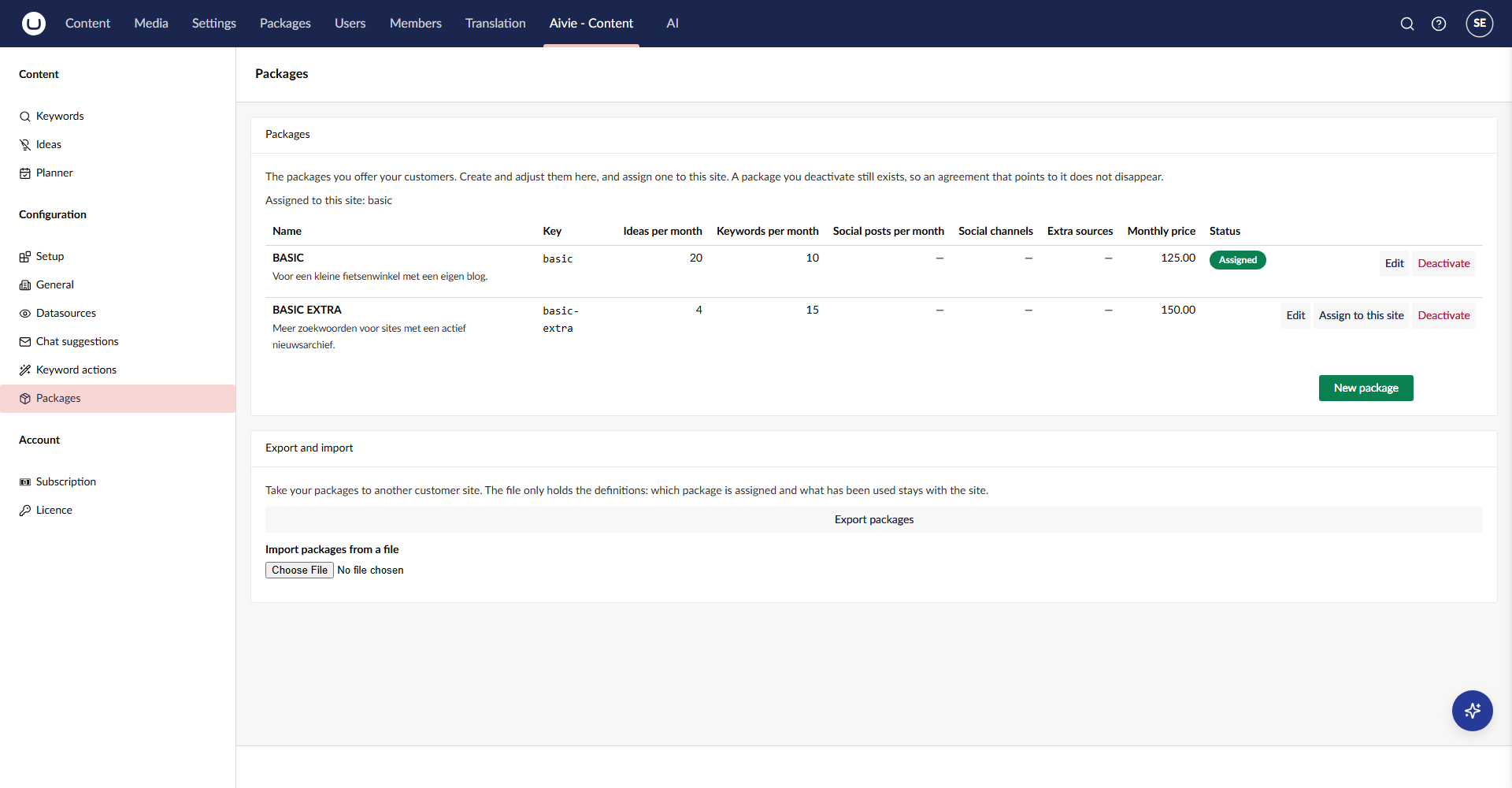
Who sees this
The Packages screen only exists on a site with a partner licence, and only for members of the Aivie-admin group. It is under Configuration in the sidebar. On other sites the menu item is not there. A customer sees the package assigned to the site and the usage on the subscription screen, but cannot change the package.
A partner site without a package of its own has no limits at all: no cap on ideas, keywords or sources. Limits only apply once you assign one of your packages to the site. For the packages of ipsis itself, see Package tiers.
Defining a package
- Open the Aivie section, Aivie - Content.
- In the sidebar, under Configuration, choose Packages.
- Press New package and fill in the form.
- Press Save.
| Field | What to enter |
|---|---|
| Key | A short identifier without spaces, for example basic-plus. Letters, digits, - and _ only, at most 64 characters. |
| Name | The name your customer sees. |
| Description | A short description of the package. |
| Ideas per month | The number of ideas the site can generate per month. A whole number, required. |
| Keywords per month | The number of keywords the site can add per month. A whole number, required. |
| Extra sources | The number of datasources the site can add. Optional. When you leave it empty, the package sets no limit on sources. |
| Monthly price | The monthly price of the package. A number, required. |
Enter whole, non-negative numbers for the limits. Otherwise the form refuses to save with Enter whole, non-negative numbers for the limits and a number for the price. Fields that are not listed here belong to features that this documentation does not cover.
The Key is global. It cannot repeat the key of another package on the site, and it cannot be one of the keys of the ipsis packages. It cannot be changed after you save the package, because subscriptions point to it. The form shows The key is fixed: subscriptions are attached to it.
Changing a package
Press Edit on a package. You can change everything except the key. A limit is read live, so a lower limit applies immediately. If the new value puts a limit below what the assigned site already used this month, the form shows This change puts a limit below the usage of this month: with the numbers. Press Save anyway to confirm.
A limit on sources never triggers this warning, because that usage is not checked here.
Deactivating a package
Press Deactivate to stop offering a package. The package still exists, so an agreement that points to it does not disappear, but it can no longer be assigned. The status column then shows Inactive. Press Activate again to bring it back.
Assigning
Press Assign to this site on a package and confirm. The site switches to this package and its limits apply immediately. The status column shows Assigned for the package of the site, and the screen reads Assigned to this site: followed by the package. Until you assign one, it reads No package has been assigned to this site yet.
Assigning replaces the earlier package of the site. Only an active package can be assigned, and only on a site with a partner licence. If the licence has expired, the screen says that changes cannot be made right now. Viewing and exporting still work. Renew the licence on the Licence screen. See Licence and trial.
Export and import
If you serve more than one customer site, you do not have to enter your packages again on each one. Under Export and import, press Export packages on one site to get a file, and import it on the next.
The file holds only the definitions of your active packages. Which package is assigned and what has been used stays with each site. Packages you have deactivated are not exported, because the file does not say that a package is inactive.
To import:
- Choose the file with Import packages from a file. If it cannot be read, Aivie says so.
- Read What the import will do. Each package has a status: New, Changes, Same or Invalid. An invalid package, for example one with a key of ipsis, comes with the reason and cannot be ticked.
- Tick the packages you want and press Import.
Nothing is saved before you press Import. If a changed limit would drop below this month's usage, you see the same warning as when you edit, and the button reads Import anyway. It then applies all ticked packages at once. Change your selection to leave a package out. A message such as 2 package(s) imported. confirms the result.
An import adds new packages and updates your own existing ones. It never deletes anything, and it never touches the packages of ipsis.