Datasources
A datasource is a website that Aivie reads and uses as background when it generates ideas and answers chat questions, for example the site of a competitor or of a trade publication. You add the sites on the Datasources screen. How the crawl behaves is set on the Settings tab of Setup.
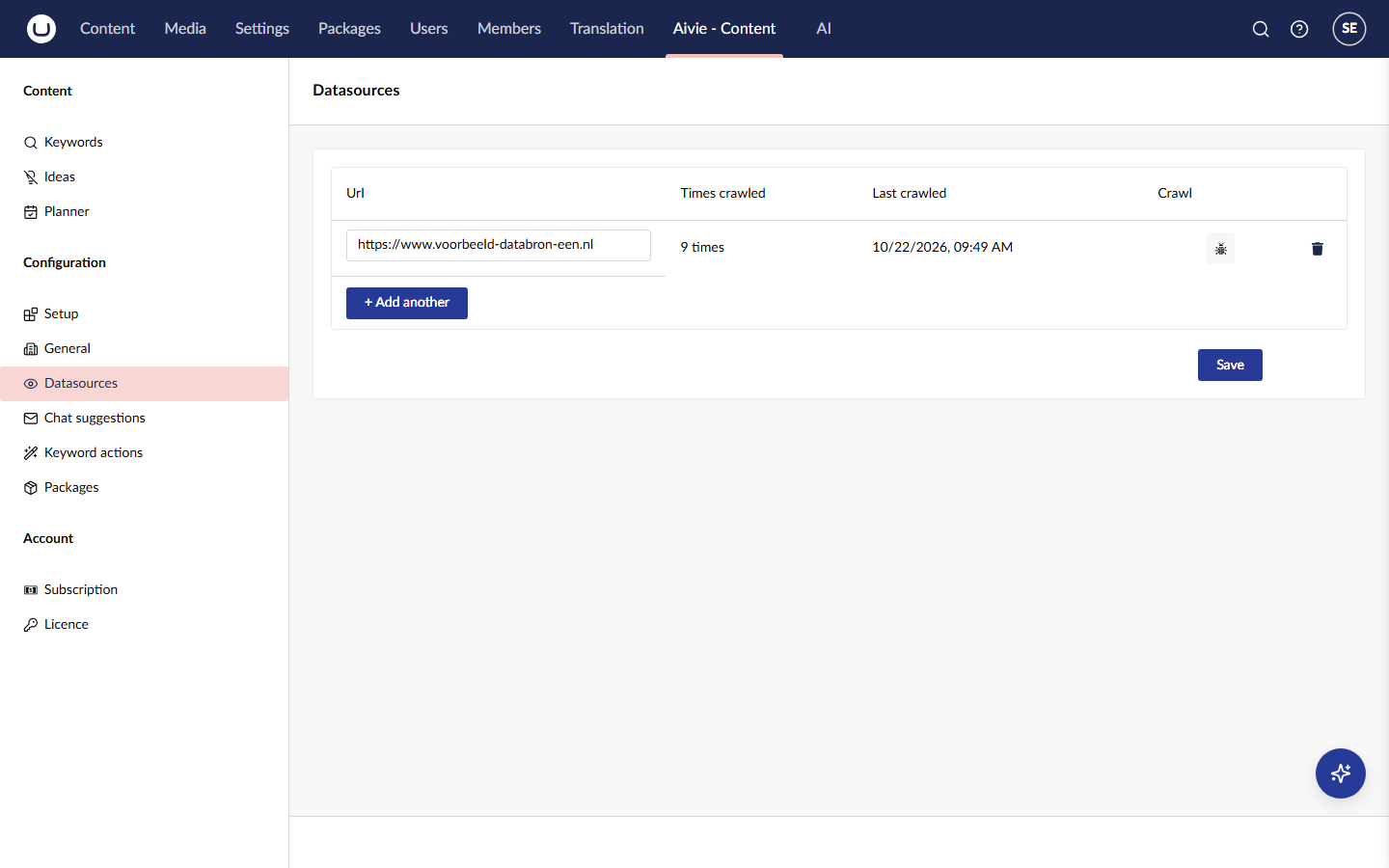
Add datasources
- Open the Aivie section, Aivie - Content.
- In the sidebar, under Configuration, choose Datasources.
- Press + Add another under the table and type the address of the site, for example
https://www.example.com. An address withouthttps://gets it added when you save. - Press Save.
The table shows the address (Url), how often the site has been crawled (Times crawled) and when it was last crawled (Last crawled). To remove a site, press its delete button and confirm Are you sure you want to delete this datasource?. Everyone with access to the Aivie section can add, change and remove datasources.
Source limit
Your package includes a number of extra sources, and a trial has its own allowance. When your site has a package, a counter above the table shows how many sources you use out of the number your package includes, for example 2 of 3 sources. When you reach the limit, the + Add another button disappears, and a save that would go over the limit is refused with a message. Sites without a package, such as a partner site that has not assigned one, have no limit.
The number of sources per package is on the package tiers page. To raise it, change your package. See Subscription and usage.
Crawl a site
A crawl reads the pages of a site and stores their text. You can start one by hand, and Aivie also crawls all your datasources on a schedule.
To crawl one site now:
- Save the datasource first. A row that has not been saved cannot be crawled: Aivie answers Save the datasource before you can crawl.
- Press Crawl on its row. The message Crawl started appears.
- Wait for Crawl finished. The crawl runs in the background, so you can leave the screen. A site with many pages can take a few minutes.
Times crawled and Last crawled are updated when a crawl finishes. A crawl that fails does not count.
The scheduled crawl goes through all datasources one by one. You set its frequency in the same place as the other crawl settings, as described below. When the licence blocks production, for example on a public domain without a licence key, the scheduled crawl does nothing. See Licence and trial.
How a crawl behaves
Aivie starts at the address you entered and adds the addresses it finds in the site's sitemap.xml, when there is one. From there it follows links, but only to pages on the same site, and only HTML pages. It respects the robots.txt of the site unless you switch that off, and it waits between requests to keep the load on the other server low.
A crawl stops when it has fetched the maximum number of pages, or when it reaches the maximum depth, which counts clicks from the start page. Both limits, the number of requests that run at the same time and the wait between requests are settings. A page whose text has not changed since the last crawl keeps its old change date. When Aivie hands the crawled text to the agents, it prefers the pages that changed most recently.
Crawl settings
The crawl settings are on the Settings tab of Setup, which only members of Aivie-admin can open. They are in the group Datasources:
- Open Configuration → Setup, and choose the tab Settings.
- Find the group Datasources and change the values you need.
- Press Save.
| Setting | What it does |
|---|---|
| Pages per crawl | The most pages one crawl fetches, even when more links are open. |
| Concurrent requests | How many pages are fetched at the same time. Higher is faster, but puts more load on your site and on the visited server. |
| Wait between requests (ms) | A pause in milliseconds before each request, as a courtesy to the other site. |
| Maximum depth | How many clicks from the start page the crawl follows. |
| Respect robots.txt | Whether the crawl keeps to the rules in the site's robots.txt. Only switch this off when you are sure you may. |
Every value shows where it comes from: default, from appsettings or set here. Keys and defaults are in the configuration keys.
Schedule
The same group has the schedule of the scheduled crawl. It is shown as one sentence, with a Change button next to it. The dialog works as described under Schedule on the Idea generator page. All times are UTC. All jobs and their schedules are listed under Scheduled jobs.
Give the crawled text to the agents
A crawl stores the text of the pages in Aivie. The agents only see it when you turn on Put crawled content in an agent context in the same group. It is off in a new installation, because it puts content in front of the agents that nobody asked for.
With the setting on, each crawl writes one text resource per datasource, named after the domain, into the context set under Context alias. The setup wizard creates the default context, Aivie Datasources. If you choose another one, create that context first under AI → Contexts, because Aivie does not create it. You can read, edit or delete the resources under AI → Contexts.
Three settings in the same group limit the size: Pages per datasource, Characters per page and Total characters per datasource. With Injection mode on Always, the text goes with every request of an agent that uses the context, so keep these low. The injection mode only applies to resources that are created after you change it. The defaults are in the configuration keys.
To make a generator look at a datasource, choose it in the Datasources field when you create an idea group. See Your first ideas. The briefing for that group then names those domains and asks the agent to look at their blocks for the topics they cover and the gaps they leave. If no block exists for a chosen domain, the agent carries on without it.
Datasource text goes into the prompt of every request that uses the context, in the chat too, so it adds to your AI usage. The text Aivie writes into the context tells the agents not to take over wording or claims from the datasource.