Chat assistant
The chat assistant lets you work on your site by asking for things in plain words: create a page, improve the SEO of a page, find an image, move a page. It works on your real content, with your company details and your page types. This page explains how to use it. To set up the suggestions and the history, see Chat and chat history.
Open the chat
You open the chat from a button that is on every backoffice page, not only in the Aivie section. There are two:
- A floating button at the bottom right of the screen. Its hover text is Open Aivie. It is the button of Umbraco.AI Copilot, which is installed with Aivie, and Aivie has taken it over.
- A speech bubble button in the header at the top, labelled Aivie. It only appears when the floating button is not there.
The chat opens as a panel on the right with the title Aivie. There is one conversation for the whole site, and it stays when you move to another page. Next to the title are three buttons: New conversation, Previous conversations and Close.
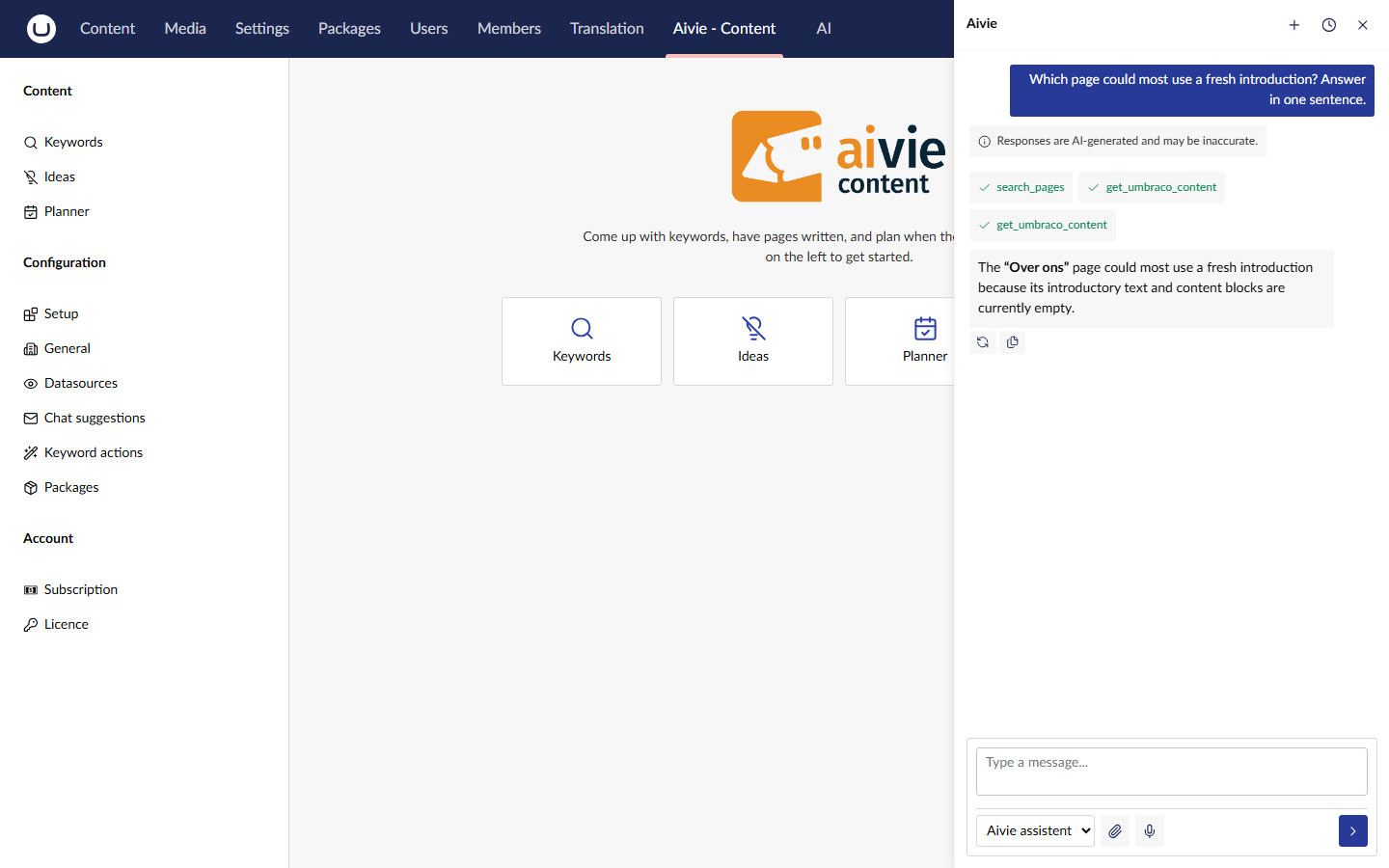
Only users whose user group has access to the Aivie section can use the chat. Without that access you see neither the floating button nor the header button, and the chat panel is not available. If a request does reach the chat without the access, the assistant answers You don't have access to Aivie. Ask an administrator for access to the Aivie section. Section access is the gate for the chat. What the assistant may then do for you is decided by your own rights in Umbraco, see The assistant follows your Umbraco rights.
You also do not see the header button when the licence does not let Aivie create anything, or when no agent is published to the Aivie chat. See Roles and access, Licence statuses and Missing screens.
Suggestions
An empty conversation shows buttons under the text Or start with one of these:. One click sends that question. The buttons disappear as soon as the conversation has a message. Your administrators set the suggestions under Configuration → Chat suggestions. See Chat and chat history.
Ask for something
Describe what you want, as you would to a colleague. By default the assistant works like this:
- When something is missing, it asks one question, for example which page the new page belongs under or who the page is for.
- It describes the layout it plans before it writes, so that you can correct it.
- It asks whether you want a page saved as a draft or published.
- It names the audience it wrote for and the example page it followed.
The assistant works from your company details, your tone of voice and the default layers, the same as the idea generator. See Company and brand and Default layers. Every message is an AI call on your own OpenAI account.
The instructions behind this are the instructions of the chat agent under AI → Agents. They can be changed there.
Previous conversations
The clock button opens the list Previous conversations with your own saved conversations and the date of their last change. Choose one to carry on with it. Aivie replaces the conversation on screen, sends the message Let's pick up where we left off. Where were we? on your behalf and restores the earlier messages, so that the assistant continues where you stopped. If the assistant is busy, you are asked to confirm first.
The list is only filled when chat history is switched on. Until then you see You have no saved conversations yet. An administrator switches it on under Keep chat history, as described in Chat and chat history.
Start a new conversation
Press New conversation to start from scratch. When the assistant is in the middle of a task, Aivie first asks you: The agent is still working. Choose Let it continue, or Abort anyway. An aborted task can leave work half done, for example a page that was created but not filled, so waiting is almost always better. The same question appears if you leave or reload the page while the assistant is working.
A conversation you leave stays in the history, if chat history is on.
What the assistant can do
| Area | What you can ask |
|---|---|
| Pages | Create a page under an existing page (Create page). Change fields such as the SEO title and description (Update page fields). Publish a page and get its address (Publish page). Move a page (Move page), copy a page with or without its subpages (Copy page), put the subpages in a different order (Reorder pages) or delete a page (Delete page). Find pages by name, also pages that are still drafts, and read which fields a page type has. |
| Page layout | See which blocks, widths and settings a page type allows (Read grid configuration). Build the whole layout of a page (Compose page layout). List the blocks on a page with their values (List blocks). Add one block (Add block) or change one block (Update block). |
| Media | Search the media library, also within one folder (Search media). Add an image from a web address (Add media). Rename media or replace its file (Update media). Make a new image with AI. See Generate images. |
| Links | Open an address in a new browser tab (Open URL). |
The assistant can also read what is on your site and work with the page you have open. A layout always follows the blocks your page type allows. It does not invent block types.
The names in bold are the names Aivie gives its tools. They also show when you look at the tools of the agent under AI → Agents.
Saving and publishing in the chat do not ask for confirmation. When the assistant saves or publishes a page, it does so at once, without a confirmation card. Your message is the permission, so be clear about what you want: ask for a draft when you do not want a page to go live. A page that is published is live on your site immediately.
The assistant follows your Umbraco rights
Aivie's tools in the chat work as you. Each tool in the table above checks your rights in Umbraco before it reads or changes anything, with the same rules the backoffice applies to you. Reading counts too. In practice:
- Sections: besides the Aivie section, you need the Content section for pages and the Media section for media.
- Start nodes: the assistant only reaches the pages and media folders that are under your start nodes.
- Permissions per page: reading, editing, publishing, deleting, moving and copying each need the matching permission on that page, as set for your user group and per page in Umbraco. Creating a page needs the permission on the page it goes under. Reordering needs it on the parent page and on every subpage that is moved. To create a page and publish it at once you need both permissions. To publish a page together with its subpages you need the permission on every one of them. If one is missing, nothing is published.
- Moving and copying: you need the permission on the page and on the page it goes to, as in Umbraco itself.
- Languages: when the assistant creates, edits or publishes a page in a particular language, you need access to that language. Publishing a page that exists in several languages, without naming one, needs access to all of its languages.
- Searching: the page search and Search media leave out pages and media outside your rights without a word.
When the assistant is refused, nothing changes. It tells you, in your own language, that you do not have this permission in Umbraco and that an administrator can give it to you. It is told not to try again or look for a way around it. There is no fixed text for this, so the wording differs from one answer to the next. A refusal is not a malfunction. See The assistant says it is not allowed to do something.
Changes made in the chat are saved in your name, as your Umbraco user.
What the assistant will not do
- It does not go beyond your rights in Umbraco. See The assistant follows your Umbraco rights.
- It never creates a page or moves a page to the top of the content tree. It always needs a page to put it under, and asks you when it does not know.
- It does not delete for good. Deleting moves a page and everything beneath it to the recycle bin, where you can restore it. By default the assistant asks you first, naming the page and how many subpages go with it.
- It publishes only when you choose that. A copy of a page is always a draft. Changing a published page leaves the change as a draft until you publish.
- It warns you before it moves a published page, because that changes its address.
- It takes images for a page from the Aivie media folder, and only makes a new one when nothing there fits. See Generate images.
- It does not make up the destination of a button. If it cannot find a page or address to link to, it asks you.
- It does nothing when the licence is read-only. The chat then shows the licence message instead of an answer. See Licence statuses.