Planner
The Planner is a calendar of the pages that go live and the pages that Aivie published. Use it to see what is coming up, to move a page to another day, or to stop a page from going live.
To open it, choose Planner under Content in the sidebar of the Aivie section.
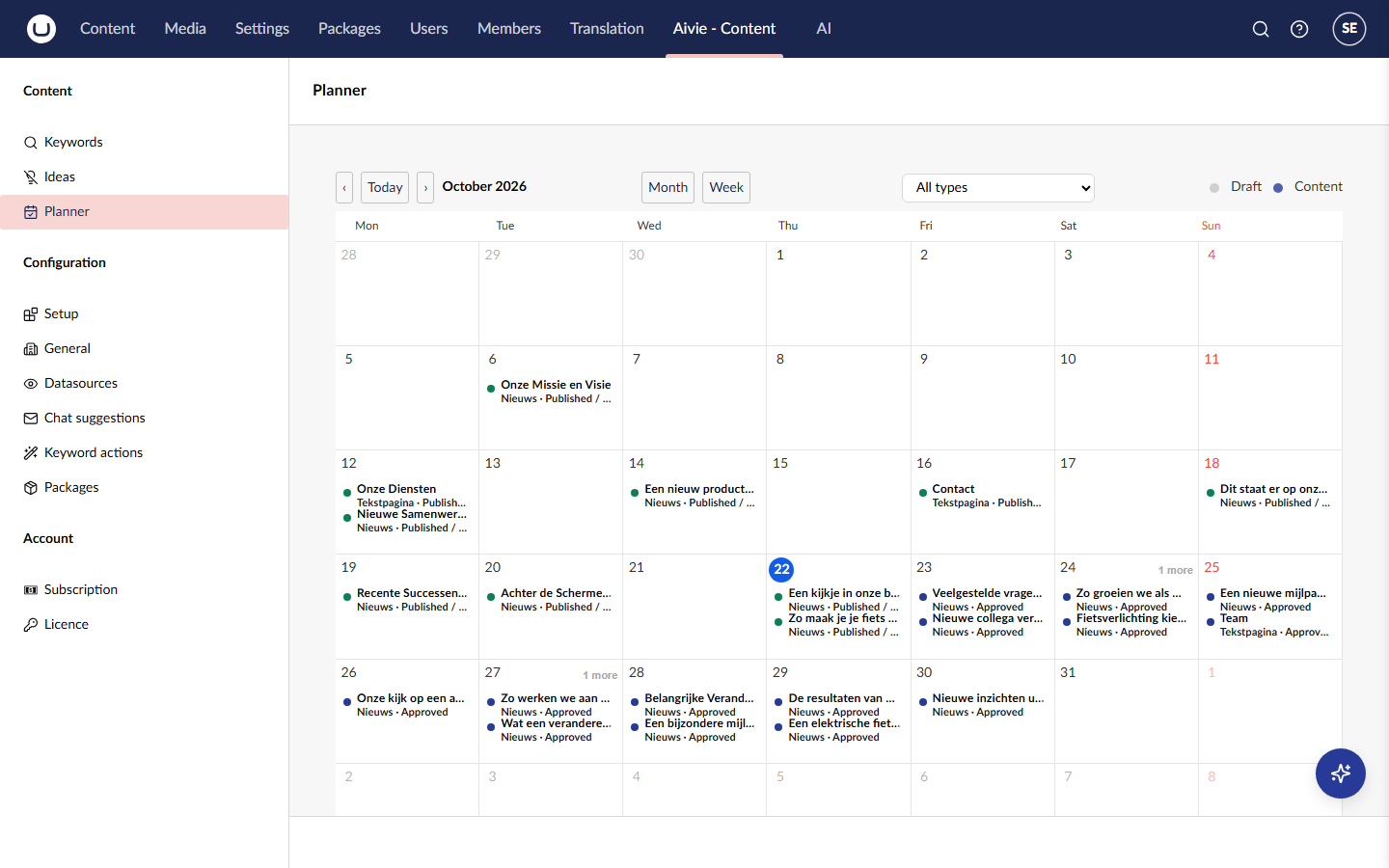
What you see
The calendar shows two kinds of pages:
- Pages with a publication date in the future. These are the pages that Aivie scheduled for the rest of the month, and any other page of your site that has a publication date set in Umbraco. They have the status Approved.
- Pages that Aivie wrote and that have been published, on the day they went live for the first time. They have the status Published / Live. A page that was unpublished later stays at that first date. A page in the recycle bin is not shown.
Each item shows a small picture when the page has an image property with an image in it, its title, the type of the page and its status.
The buttons at the top move through time and change the view:
| Button | What it does |
|---|---|
| Previous, Next | Go back or forward by a month or a week. |
| Today | Jump to the current date. |
| Month, Week | Switch between the month view and the week view. |
| The refresh icon | Load the calendar again. |
| All types, Content, Other | Show every item, only pages, or only items that are not pages. Aivie does not create the last kind itself. |
The legend next to them explains the colours.
When pages go live
Every page that Aivie writes gets a publication date. Aivie spreads the dates of a run over what is left of the month. A page whose date is today is published at once, and the others are scheduled by Umbraco, which publishes them on their day at the time set by Publication time (UTC). The pages are therefore visible on your site as soon as their day comes, unless you stop them. See Idea generator for the publication time.
When the page type has the property that hides a page from the menu, Aivie sets it on new pages, so a published idea does not show up in your navigation. See Page building. Check the pages before their day comes, and use the planner to stop or move the ones that are not ready.
Open, move or stop a page
Click an item in the calendar.
-
A page that is Published / Live opens straight in the content editor, in a new browser tab.
-
Any other page opens a small window with its title, its type and status, and its image. The window has two buttons:
- Edit opens the page in the content editor, in a new browser tab.
- Don't publish removes the publication date. The page stays in the content tree and is not published. You can set a new date in the content editor.
Close the window with Close or by clicking outside it.
To move a page to another day, drag it to the new day in the calendar. In the week view you can also drag it to another time. A page that is already published cannot be moved. If a change cannot be saved, you see The change could not be saved: followed by the reason, and the page stays where it was.