Subscription and usage
The Subscription screen shows your package, how much of it you have used this month, and whether Aivie can reach the AI model. To open it, choose Subscription under Account in the sidebar of the Aivie section.
The screen is in the sidebar when your site has a subscription, and also during a trial. A site with a partner licence that has no package assigned has no limits and no subscription, so it has no such screen. See Packages (partners).
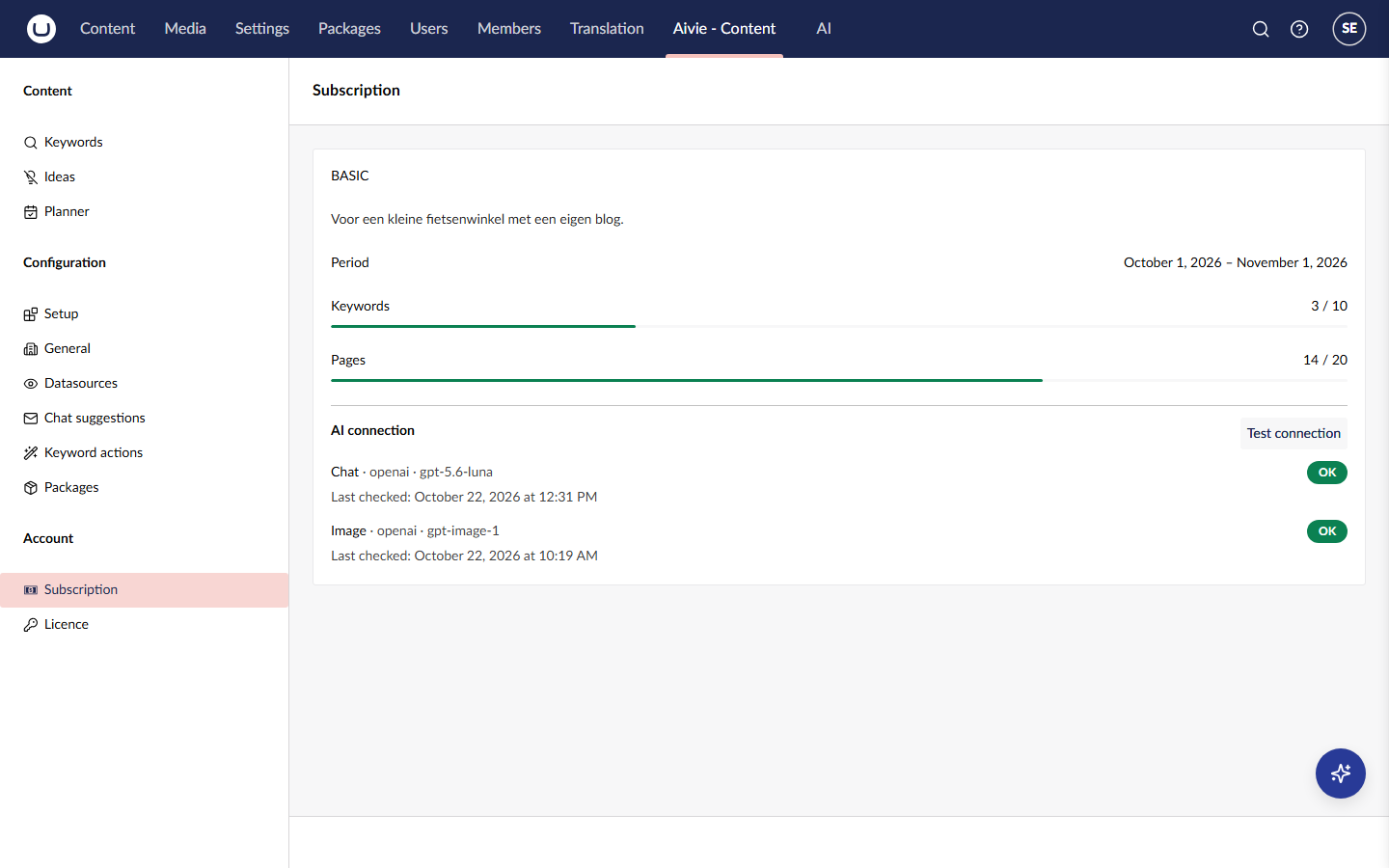
Limits and usage
At the top you see the name of your package, for example Aivie Content - Core, followed by a sentence that sums up what the package includes. During a trial the name is Aivie trial period. Below that:
- Period is the period the figures belong to. For a package it is the current calendar month in UTC. During a trial it is the trial.
- A bar for Keywords, Pages and Extra sources shows how many you used against how many your package includes, for example
7 / 10. Pages are the ideas that Aivie writes for you. A limit your package does not have is left out. - Check-in meetings per year shows how many check-in meetings your package includes. It only appears when there are any.
The counters start again at 0 on the first of the month. The limits per package, and those of the trial, are on the package tiers page. If you hit a limit, see Limits reached. To change your package, see Changing package.
You also see your usage on the screens themselves: 7 of 10 keywords remaining on Keywords, 7 of 10 ideas remaining on Ideas and idea groups, and a counter above the datasources table. See Datasources.
AI connection
Below the limits is the block AI connection. Aivie needs two AI profiles: Chat, which writes text, and Image, which draws images. For each you see a status:
| Status | Meaning |
|---|---|
| OK | The last call to the AI model worked. |
| Problem | The last call failed. |
| Unknown | Aivie has not made a call with this profile yet. |
Under each profile you see Last checked: and, when the status is not OK, Last successful:. The date reads Never when there is nothing yet.
Aivie updates the status in three ways: every time the chat, a generator or the image generator makes a call, once a day by a background job (not during a trial), and when a member of Aivie-admin presses Test connection. See Background jobs.
Test the connection
Members of Aivie-admin see the button Test connection next to the title. It makes a short call to the chat profile and shows the new status. The image profile is not tested by this button; it follows from the first image you generate.
If the test fails, see AI connection problems.
Who sees what
Everyone with access to the section sees the status of each profile. Only members of Aivie-admin see the cause and the provider and model, because the cause often points to something only an administrator can fix. For example:
- the API key no longer works;
- the spending limit or the credit at the provider has been reached;
- the provider limits the number of requests, or cannot be reached;
- the configured model no longer exists at the provider.
Aivie does not show amounts or balances from the provider.
The notice and the red badge
When a profile has a problem, a notice appears at the top of every Aivie screen.
- Members of Aivie-admin see the cause for each profile that has a problem, and a button Open the Subscription screen.
- Everyone else sees AI is temporarily unavailable. Your administrator has been notified.
Members of Aivie-admin also see a red badge with an exclamation mark on Subscription in the sidebar. Both disappear when the next call works, or when you press Test connection and it succeeds.