The Aivie section
Aivie has its own section in the Umbraco backoffice, called Aivie - Content. Everything you do with keywords, ideas and the planner, and all the settings, are in this section. This page shows where things are. Each screen has its own page in this guide.
Open the section
- Log in to the Umbraco backoffice.
- Choose Aivie - Content in the section bar at the top.
If the section is not there, your user group has no access to it. See Roles and access, or Missing screens if you are a member of the right group and still do not see it.
The sidebar
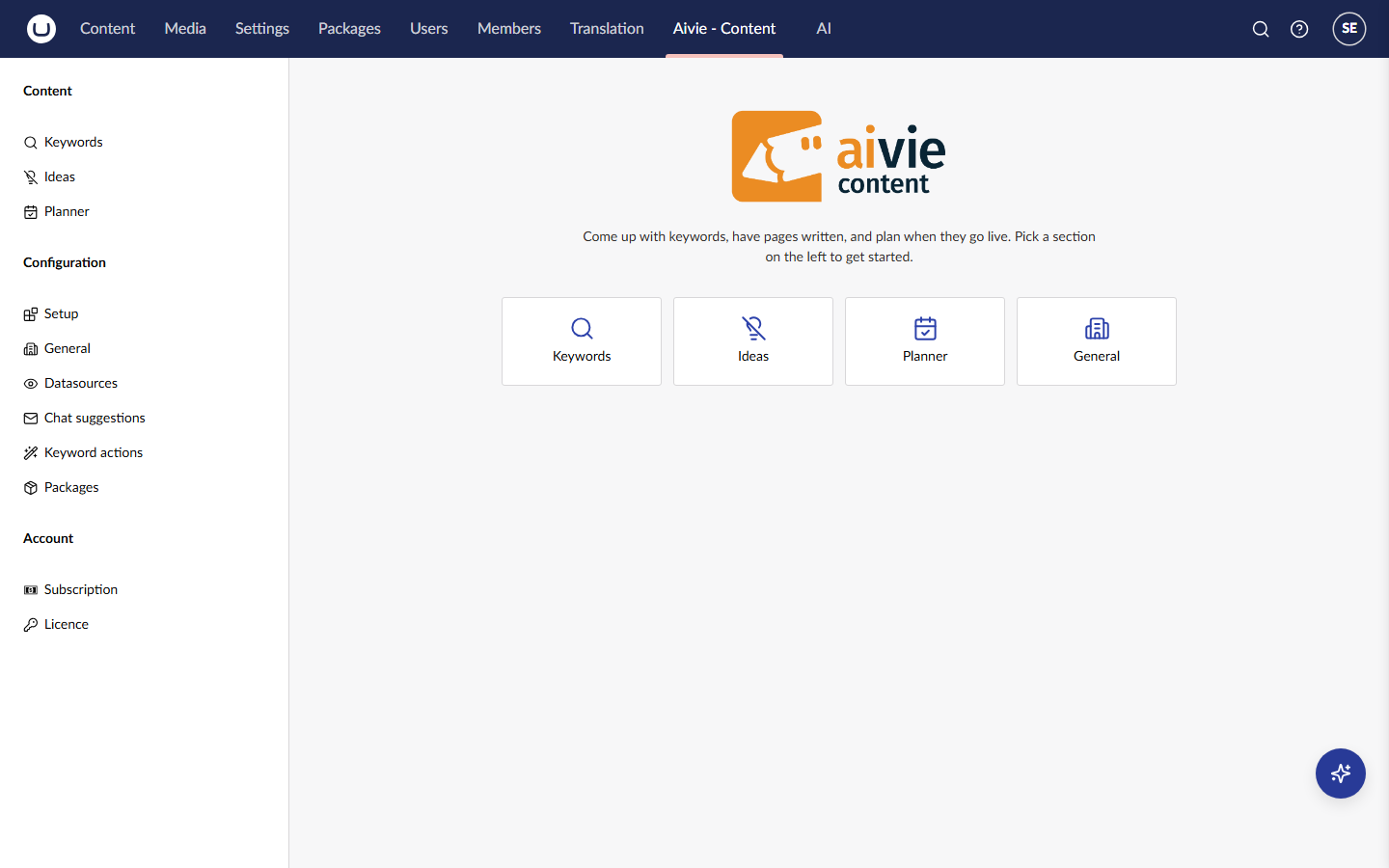
The sidebar on the left has three groups: Content, Configuration and Account.
| Group | Screen | What you do there | Who sees it |
|---|---|---|---|
| Content | Keywords | Find, add and track keywords. See Keywords. | Everyone with access to the section |
| Content | Ideas | Make idea groups and look at the pages Aivie wrote. It has two tabs, Ideas and Clusters. See Ideas and idea groups. | Everyone with access to the section |
| Content | Planner | See when pages go live. See Planner. | Everyone with access to the section |
| Configuration | Setup | The setup wizard and, on a second tab called Settings, the technical settings. | Aivie-admin only |
| Configuration | General | Your company details, brand style, selling points, goals, services and audiences. See Company and brand. | Everyone with access to the section |
| Configuration | Datasources | The websites Aivie reads as background. See Datasources. | Everyone with access to the section |
| Configuration | Chat suggestions | The ready-made questions in the chat panel. See Chat and chat history. | Everyone with access to the section |
| Configuration | Keyword actions | The ready-made requests you can send to the chat from the keyword list. See Chat and chat history. | Everyone with access to the section |
| Configuration | Packages | The packages a partner offers to customers. See Packages (partners). | Aivie-admin, and only on a partner licence |
| Account | Subscription | Your limits, your usage and the state of the AI connection. See Subscription and usage. | Everyone with access to the section, and only when the site has a subscription or a trial |
| Account | Licence | Enter and check your licence key. See Licence and trial. | Aivie-admin only |
Screens you may not use are left out of your sidebar instead of showing an error.
The welcome screen
When you open the section without choosing a screen, you see the welcome screen: the Aivie logo, a short introduction and four shortcuts to Keywords, Ideas, Planner and General.
If the setup is not finished yet, a member of Aivie-admin also sees a note that Aivie cannot create anything until it is, with a button Go to setup. The button opens the setup wizard. Other users do not see this note.
Notices at the top of a screen
Two kinds of notice can appear at the top of every Aivie screen. They disappear by themselves when the cause is gone.
- A licence notice appears when the licence needs attention, for example when a trial is running out or the licence has expired. A button Go to the licence opens the licence screen. See Licence statuses.
- An AI connection notice appears when Aivie cannot reach the AI model. See Subscription and usage.
The chat assistant
The chat assistant is not a screen in the sidebar. You open it from a button that is on every backoffice page, for everyone with access to the Aivie section. See Chat assistant.