Keywords
The Keywords screen is your list of keywords. You add keywords by hand or let Aivie suggest them, sort them into clusters, and follow how they perform. Idea groups write about the keywords on this list. See Ideas and idea groups.
To open it, choose Keywords under Content in the sidebar of the Aivie section.
If your site has a subscription or a trial, a line above the list shows how much of your keyword allowance is left, for example 7 of 10 keywords remaining. The limits per package are on the package tiers page.
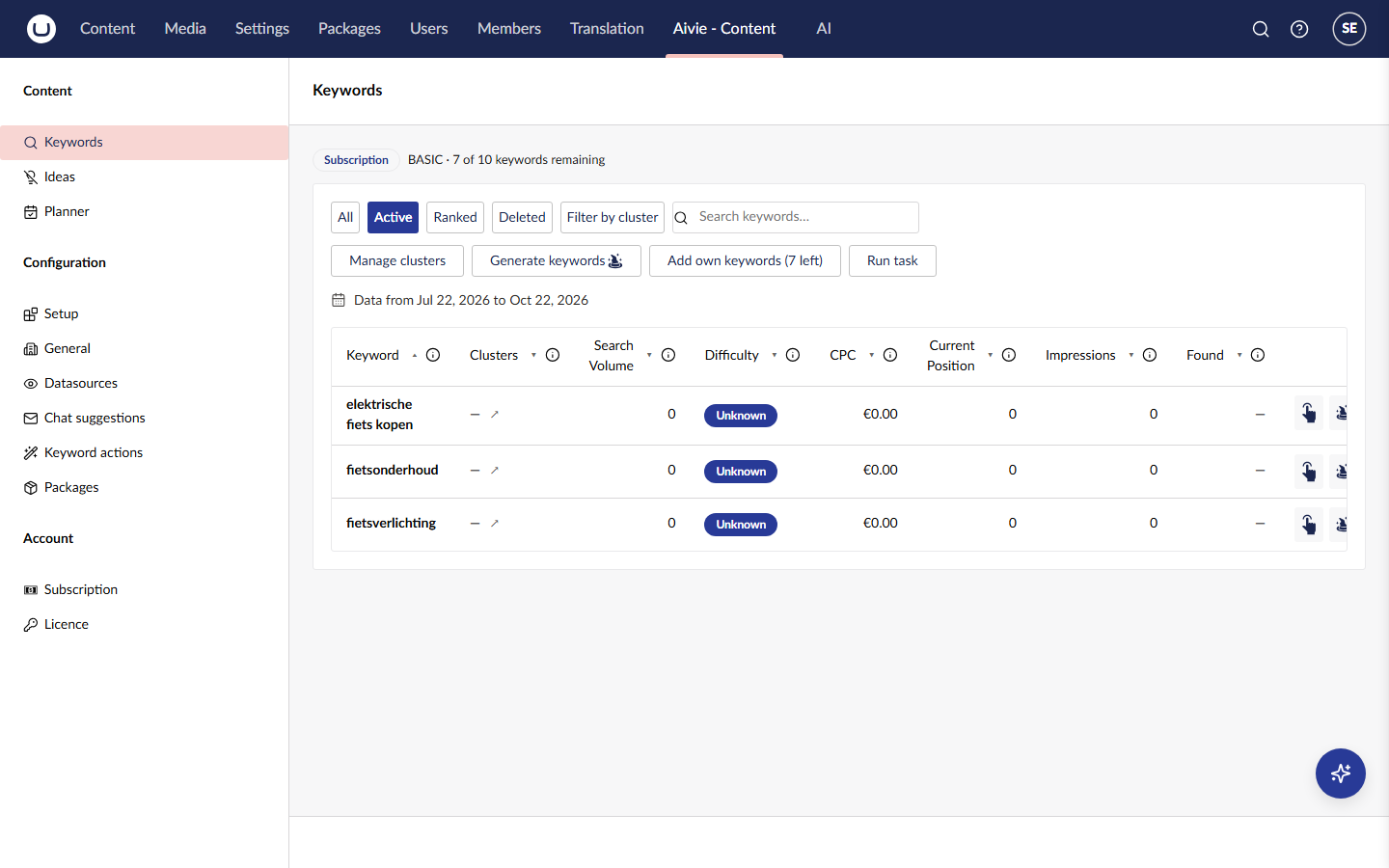
The list
The list opens on the filter Active. The other filters are next to it:
| Filter | Shows |
|---|---|
| All | Every keyword, including deleted ones. |
| Active | Every keyword that is not deleted. This is the default. |
| Ranked | Active keywords for which at least one page of your site was found in the search results. |
| Deleted | Only the keywords you deleted. |
Type in the box Search keywords… to narrow the list. It searches the keywords and the names of their clusters. Press Clear or Escape to empty it.
Click a column heading to sort by that column. Click it again to reverse the order. The list starts sorted by keyword. Press the information icon next to a heading for a short explanation.
Columns
| Column | What it shows |
|---|---|
| Keyword | The keyword. |
| Clusters | The clusters the keyword belongs to. |
| Search Volume | How often the keyword is searched for every 3 months in the Netherlands. |
| Difficulty | How hard it is to rank for the keyword: Low, Medium, High or Unknown. |
| CPC | The average cost of a click on the keyword if you advertised on it in Google. |
| Current Position | The position in Google of the page of your site that ranks for the keyword. |
| Impressions | How often that page was shown in the Google search results. |
| Found | The number of pages of your site that rank for the keyword. |
Search volume, difficulty and CPC come from DataForSeo. Position, impressions and the pages come from Google Search Console. Without a connection to a service, its columns show no figures. See Keywords, Search Console and DataForSeo.
Refresh the figures
Aivie does not update the figures by itself, and a new keyword has none yet. Press Run task to fetch them for all active keywords. When it is done you see Task complete.
A line above the list, starting with Data from, shows a period that ends on the day of the last run, or today if you never ran it.
Generate keywords
Aivie can suggest keywords for you.
- Press Generate keywords. The dialog Generate keywords automatically opens.
- Optionally enter a Keyword as a starting point, for example
road bikes. Aivie then suggests keywords around it. - Tick Short-tail, Long-tail or both. At least one is needed.
- Under Cluster for new keywords, choose a cluster to put the new keywords in. If you have no clusters yet, the dialog advises you to add some first, but you can still generate.
- Choose the Number to generate: 1, 5, 10 or 20, as far as your allowance allows. The dialog shows how many keywords you have left.
- Optionally describe what you want in Custom prompt.
- Press Generate.
- Untick the suggestions you do not want. Press Regenerate to get a new set; the suggestions you unticked do not come back. ← Back to settings returns to the form.
- Press Apply. The keywords are added to your list and you see Keywords processed.
A keyword counts against your allowance when you apply it, not when it is suggested. Generating and regenerating are free as far as your keyword allowance is concerned, but they are AI calls that appear on your own OpenAI bill.
The button Magic action at the end of a row opens the same dialog with that keyword already filled in.
Add your own keywords
- Press Add own keywords. Its hover text reads Add own keyword.
- Type the keyword in the dialog Add your own keyword: and confirm.
You see Keyword added and the keyword appears in the list. If your site has a subscription or a trial, the button shows how many keywords you have left, for example (5 left).
Limits
When your allowance is used up, Aivie shows Keyword limit reached, followed by how many keywords you can still add. A trial has its own, smaller allowance. Deleting a keyword does not give its place back. The allowance starts again on the first of the month. See Package tiers and Limits reached.
Delete a keyword
Press the bin icon at the end of a row to delete a keyword. The keyword moves to the filter Deleted and is left out when you refresh the figures. Select the filter Deleted and press the undo icon (hover text Undo) to bring it back.
Clusters
A cluster is a label for a group of keywords on one topic. The clusters on this screen are not the same as the idea groups on the Ideas screen, although that screen also uses the word cluster for those.
- Manage clusters opens a dialog in which you create, rename and delete clusters.
- The arrow icon next to the clusters in a row (hover text Edit clusters) opens a dialog in which you tick the clusters for that keyword and press Link. You see Clusters linked.
- Filter by cluster limits the list to one cluster. The button then shows Cluster: and the name. Clear filter removes the filter.
View linked pages
In the column Found, a button such as 3 pages (hover text View linked pages) opens the dialog Pages for keyword. It lists up to 50 pages of your site that Google shows for the keyword, the ones with the most impressions first. For each page you see the address, the Impressions and the Avg. position.
Press Open to look at the live page. Press Edit to open the page in the content editor. Edit only appears for addresses that belong to a page in your content tree. A search box filters the list.
Send a keyword to the assistant
The assistant icon at the end of a row (hover text Send to assistent) opens the dialog Keyword assistant.
- Under Action, choose what the assistant should do. The actions are the active ones under Keyword actions in the configuration. See Chat and chat history.
- Optionally tick Other keywords to take along. You can filter the list, and Select all (filtered) ticks all keywords that match the filter.
- Check the Prompt preview and press Send.
Aivie opens the chat assistant with a new conversation and sends the request. If the assistant is still busy in the current conversation, you are asked first whether to abort it. The conversation you leave stays in the history.