Generate images
Aivie can draw images for you and place them in your media library. You can ask for one in two ways: with a button next to a media field, or in the chat. The idea generator also asks for an image itself when an image field of a new page stays empty. See Images and media.
Image generation has to be set up first: a restart after the setup wizard, an image profile, and the switch Generate AI images. See What image generation needs. Each image is an AI call that appears on your own OpenAI bill.
In the media picker
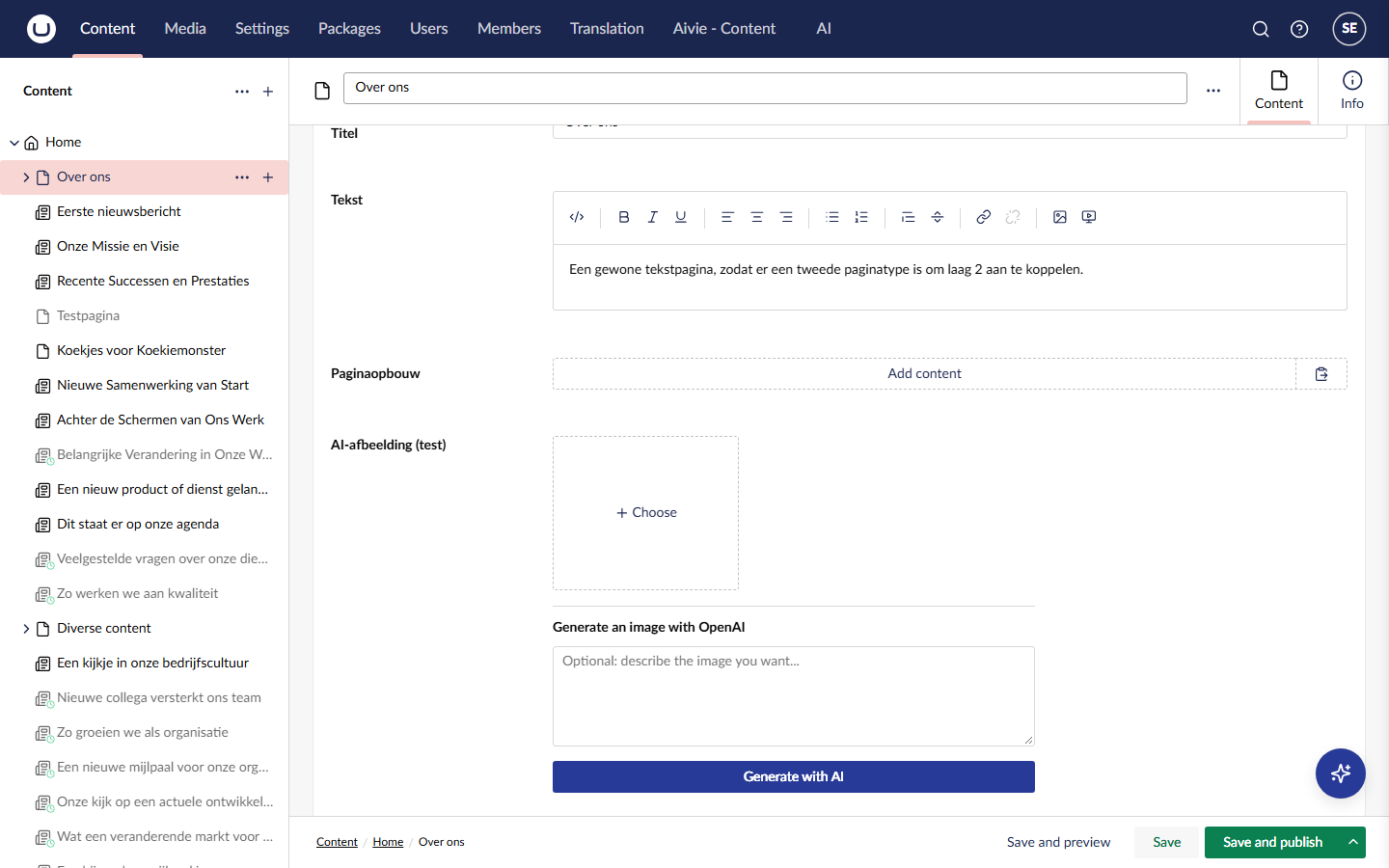
The button Generate with AI is part of the property editor OpenAI Media Picker. It works like the normal Media Picker, with an extra box underneath. Aivie does not put this editor on any of your fields by itself, so you add it once.
Add the picker to a field
- Open Settings → Data Types and create a new data type.
- As the property editor, choose OpenAI Media Picker. It is listed with the media editors.
- Save the data type and use it for the image property on your document type or element type.
Generate an image
- Open a page with such a field. Under the media picker you see the box Generate an image with OpenAI.
- Describe the image in the box, for example
a rider on a gravel road at sunrise. - Press Generate with AI. The button reads Working... while Aivie draws. This can take a while, and Aivie waits up to six minutes.
- The new image appears in the field. Save the page as usual.
The new image replaces what was in the field. The old image stays in the media library.
The box says that the description is optional. In practice Aivie needs one: without it you get the message Describe what the image should show.
What Aivie adds to your description
Aivie adds the image style from Brand & style to every request, and uses the size set under Images and media. It also tells the AI the name of the page you are editing and its meta description, so that the image fits the page, as long as you may read that page in Umbraco. See Company and brand and Size.
Aivie also lets the AI write a name, a description and an alternative text for the image. The description is what the chat and the idea generator use to find the image later. These texts are written in Dutch at the moment. Check them in the media library and change them where you need to.
In the chat
Ask the chat assistant for an image, or for a page with images. By default the assistant looks in the Aivie media folder first, and only makes a new image when nothing there fits. Each new image gets a description of what is on it, an alternative text and a name.
If you ask for a different image in the same conversation, the assistant makes a new one and moves the one it made just before to the recycle bin. It only does this for images that it made itself, in the Aivie media folder, within a short time window. See Replacing a new image. Other images are never touched this way.
The chat can also add an image from a web address to the media library, and rename media or replace its file.
Who can use image generation
Image generation follows your rights in Umbraco:
- The box with Generate with AI is only there for users whose user group has access to the Aivie section. Without that access you only see the normal media picker, and the server refuses the button as well.
- A new image is saved in the Aivie media folder, so you need access to that folder in Umbraco: the Media section, and start nodes that cover the folder. Without it the button answers You don't have permission for this media folder. Ask an administrator for access. and the chat assistant says that you are not allowed to. Nothing is generated. See The message says you have no permission for the media folder.
- Aivie only tells the AI the name and meta description of the page you are editing when you may read that page in Umbraco. If you may not, the image is still made, without that context.
- Images that the chat adds or changes in the media library are saved in your name.
Where images are stored
Generated images are saved in one folder of the media library, the Aivie media folder. The setup wizard creates it. You can choose another folder under Media folder on the Settings tab, as described in Media folder. If the folder does not exist, Aivie does not generate an image, because it would otherwise end up in the root of your media library.
The description of an image is stored in a field of the Image media type that Aivie adds. See Image descriptions.
Turn it off or fix it
Switch off Generate AI images under Brand & style to stop all AI image generation: the button, the chat and the idea generator. Aivie then answers that image generation is switched off for the site. See Turning image generation off.
If you press the button and no image appears, see Images not generating.