Ideas and idea groups
An idea is a page that Aivie wrote for you. You do not ask for ideas one by one. You make idea groups, which tell Aivie what to write about, and Aivie writes the pages for the groups that are active in the current month. This page describes the Ideas screen. For a first walkthrough, see Your first ideas.
To open it, choose Ideas under Content in the sidebar of the Aivie section. The screen has two tabs: Ideas, with the pages Aivie wrote, and Clusters, with your idea groups. The tab and the cards say cluster, the dialog says idea group. They are the same thing.
If your site has a subscription or a trial, a line above the tabs shows how many ideas you have left this month, for example 7 of 10 ideas remaining.
The Ideas tab
Every page that Aivie wrote is a card with the name of the page, the idea group it came from (Cluster:), the date it was made (Created:) and a status of Open or Closed. Use the list at the top right to switch between open and closed ideas, the search box to find an idea by name, and Refresh to load the list again. Click a card to open the page in the content editor in a new browser tab.
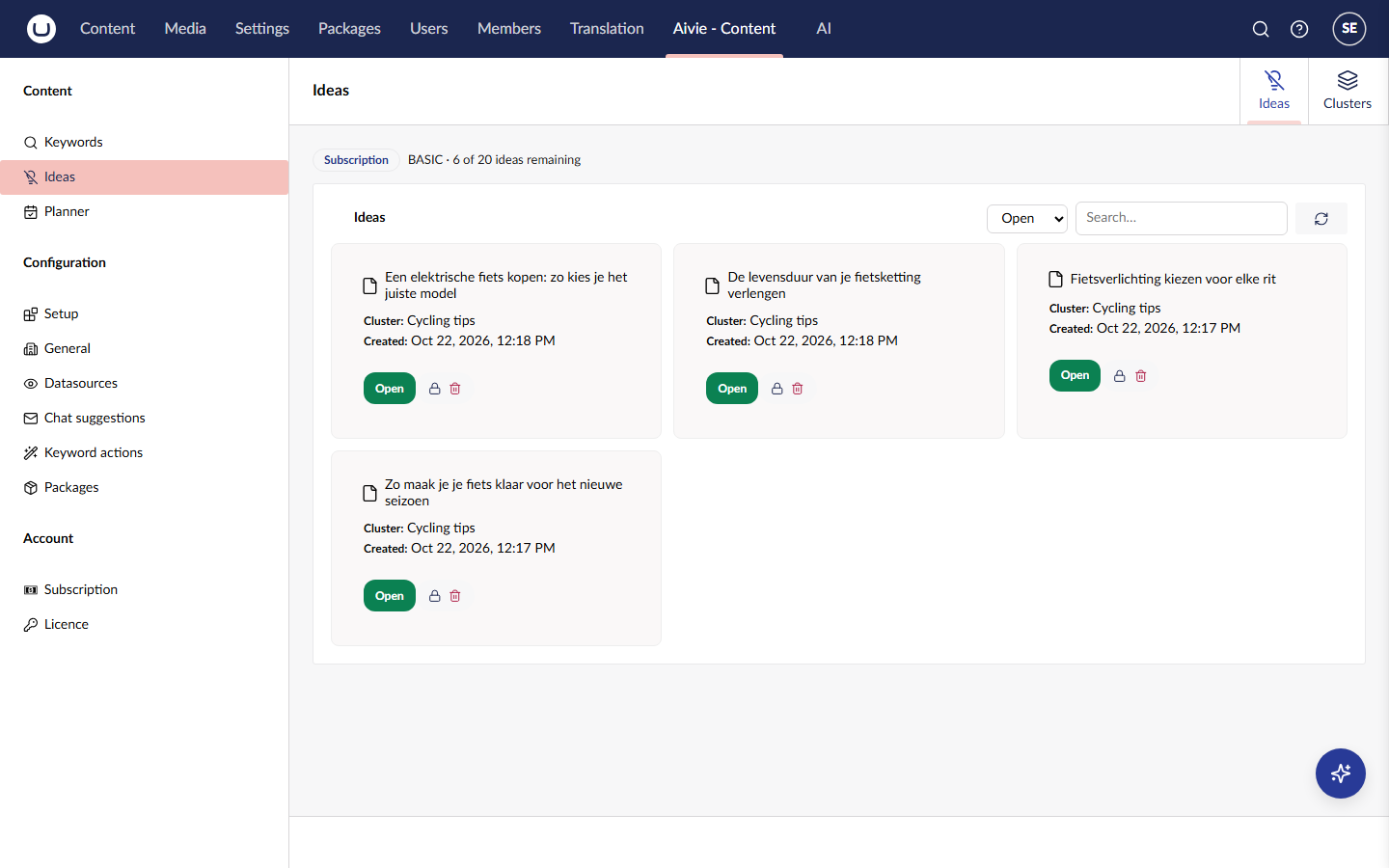
Two icons on a card act on the idea:
- The lock icon closes the idea. A closed idea moves to the list Closed. Use it to tidy the list once you have dealt with a page. The page itself does not change.
- The bin icon deletes the idea. You are asked to confirm Permanently delete idea followed by the name.
Deleting an idea deletes the page itself from Umbraco, with its subpages, and not to the recycle bin. This cannot be undone. To get rid of a page you may still want back, move it to the recycle bin in the content tree instead.
An idea stays open when its page is published. It closes by itself when you move the page to the recycle bin, and it disappears when you delete the page in the content tree.
The Clusters tab
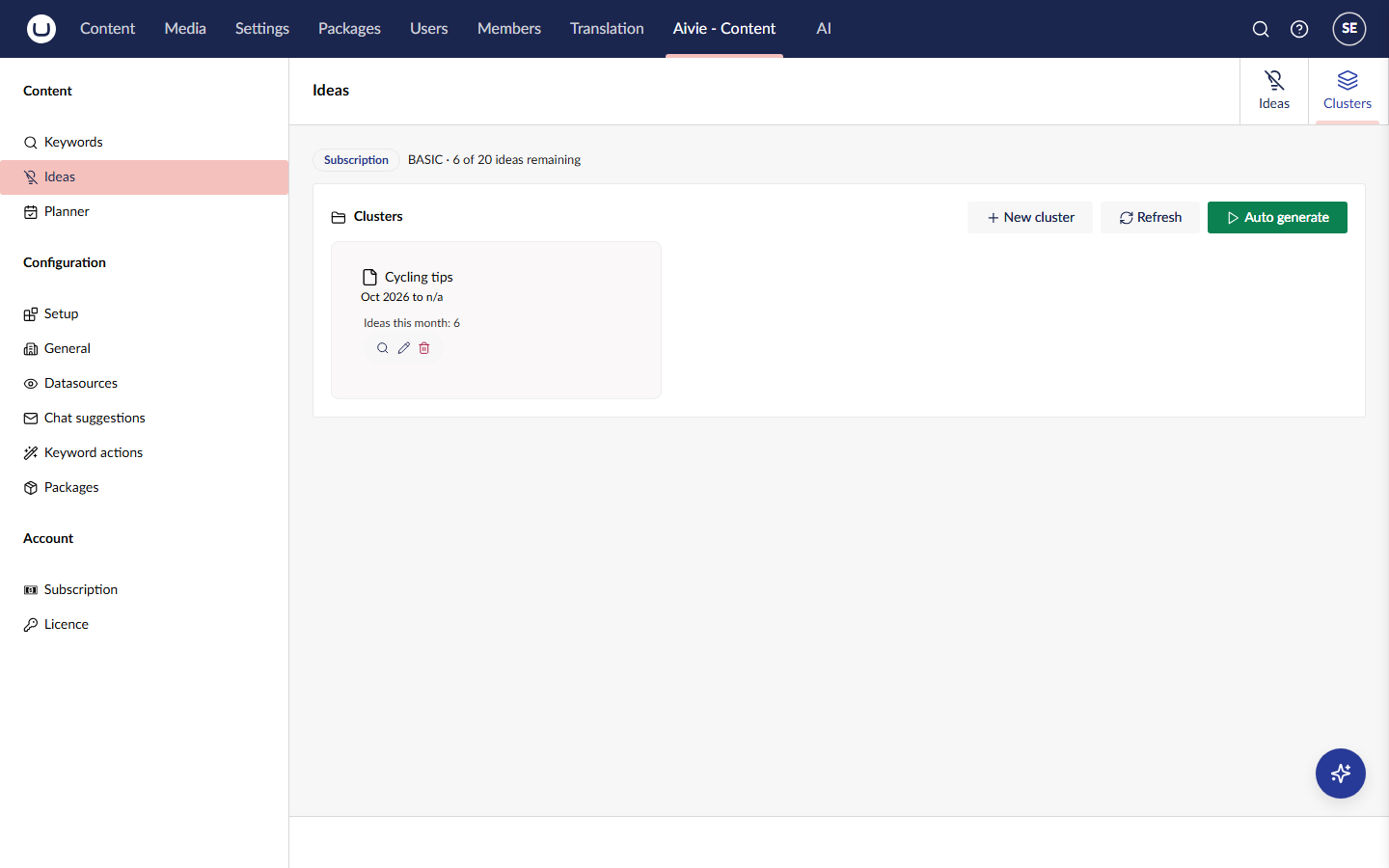
Every idea group is a card with its name, its period and the number of ideas it gets this month. Three icons act on a group:
- The magnifier shows a preview. See Preview a group.
- The pencil opens the group to edit it. The dialog is the same as for a new group, with the title Edit idea group and the button Save.
- The bin icon deletes the group, after you confirm Permanently delete cluster followed by the name. The pages the group already made stay where they are.
The buttons at the top are New cluster, Refresh and Auto generate.
New idea group
- On the tab Clusters, press New cluster. The dialog New idea group opens.
- Fill in the fields below.
- Press Create.
Before your first group, choose which content types a group can use. Otherwise Which content type? stays empty. See Choose the page types for idea groups.
| Field | What to enter |
|---|---|
| Idea group name | A name for the group. Required. |
| Start date | The first month in which the group is active. Required. |
| End date | The last month. Optional, and not earlier than the start date. |
| Which content type? | The kind of page to write. Required before the group can run. |
| Which page should the ideas go under? | The parent page for the new pages. Leave it empty to use the default from the settings. |
| Example pages | Pages that show how your pages are built. Optional. See Example pages. |
| Which keywords? | The keywords the group writes about. Search the list and tick the keywords. They have to be on your keyword list first. |
| Datasources | Websites from the Datasources screen that Aivie looks at for the topics they cover and the gaps they leave. Optional. |
| Which goals? | One goal from the Goals tab of the general settings. Optional. |
| Services? | One service from the Services tab. Optional. |
| Target audience? | One audience from the Audiences tab. Optional. |
| Custom instruction | Extra instructions in your own words. Optional. |
See Company and brand for the goals, services and audiences.
A group needs a content type and a parent page that Aivie can find, either its own or the default from the settings. A group without them is left out of every run.
When a group can start
The first month you can choose is the current month. A month that has passed is refused, because its run has already happened. If you try, the dialog says A group can start in the earliest month. This only applies when you create a group or move its start month. A group that is already running keeps its start month when you edit something else. On a site that runs in the Development environment you can choose any month.
If you move the start date past the end date, the end date is emptied. A group has to end after it starts: The end date cannot be earlier than the start date.
Example pages
An example page shows Aivie how a page of that type is built on your site: which blocks come first, which block types follow and which settings they use. Aivie reads only that structure. It does not copy the text of the example, and the number of blocks on the example does not decide how long an idea becomes. The length comes from the instructions for that kind of page. See Default layers.
Choose example pages
- In the dialog of the group, choose the content type first. The field Example pages only offers pages of that type.
- Under Example pages, pick one or more pages. The order you pick them in is kept.
- Save the group.
If you later change the content type of the group, the example pages are emptied, because they would no longer fit.
Choose pages that are typical for the kind of page you want, are built the way you want your new pages to look, and are published. Aivie refuses a choice when:
- the page no longer exists, or is in the recycle bin;
- the page is not of the content type of the group;
- the page is on a different site than the parent page of the group.
The message names the page and the reason. Aivie only uses a chosen page when it is published and has at least one block. When none of the chosen pages can be used at that moment, for example because someone unpublished them, Aivie picks examples itself.
What Aivie does with them
For every idea, Aivie takes the example that fits the topic best from the pages you chose. It spreads the ideas of a run and of a month over your examples, so that one page does not set the pattern for all ideas.
If you choose no examples, Aivie picks up to five published pages of the same type on the same site itself: the pages with the most varied structure. Pages that Aivie wrote are left out of this automatic choice, so that its own pages do not become the model for the next ones. You can still choose such a page yourself.
You can see which example Aivie used in the preview. To stop Aivie from using examples at all, see Example pages.
Preview a group
The preview lets you see what a group produces before you run it. Press the magnifier on the card of the group. Its hover text says that it works out one idea and shows what the cluster produces.
The dialog Preview for followed by the name of the group shows Thinking and writing. This takes a moment; it is a real AI call. while Aivie works. Then you see one idea as a reader would: the title and the text, with a dashed box where an image would go and buttons where the page has links. Below it, Example: names the example page that Aivie followed, or Written without an example page. appears.
Press Again for another idea and Close to leave.
Nothing is created and nothing is deducted from your ideas allowance. It is a real AI call though, so it appears on your own OpenAI bill. If the group cannot run, for example because it has no content type, the dialog gives the reason instead of an idea. Links that do not lead to a page on your site are removed from the idea, and the dialog says so.
Auto generate
Auto generate on the tab Clusters writes the ideas for this month for all groups that are active now. It asks Auto generate ideas based on active clusters? and shows Generating... while it works. A run with several groups can take a few minutes, and it keeps going on the server if you leave the page. When it is done, you see Automatic generation complete.
Aivie runs the same generation by itself, by default on the first of every month. Both are described in Your first ideas and Background jobs.
Aivie gives each new page a publication date, spread over what is left of the month. A page whose date is today is published at once. The other pages are published on their day, unless you stop that in the planner.
Your ideas allowance
Your package includes a number of ideas per month. See Package tiers. Each idea that Aivie writes uses one. You see the allowance in two places:
- The line above the tabs, for example 7 of 10 ideas remaining.
- The line Ideas this month: on every group card, followed by the number of ideas the group gets in the next run. Aivie divides what is left of the month over the groups that take part. A group that cannot run, or that is not active this month, shows 0. During a trial the line reads Ideas in the next run:.
The card shows n/a when the number is not known. How Aivie divides the allowance is explained under How much a run makes.